

Connecting to Confluent Cloud
Connect your Confluent Cloud account to CloudZero to bring your Confluent cost and usage data into a unified view of all your cloud and SaaS spend. CloudZero organizes your Confluent costs, along with your other costs, into categories (called Dimensions) that matter most to your business. For example: business unit, team, product, feature, environment, customer, or virtually anything else. Once connected and organized, you can quickly answer questions about your spend that matter to your stakeholders.
This guide covers creating a Confluent service account with billing access and configuring the connection in CloudZero.
What you need
- CloudZero user with data configuration permissions
- Confluent Cloud account with OrganizationAdmin access (or higher)
Step 1: Create a service account in Confluent
For full details, see Confluent's service account documentation.
-
In Confluent Cloud, open the top-right menu and navigate to Accounts and access.
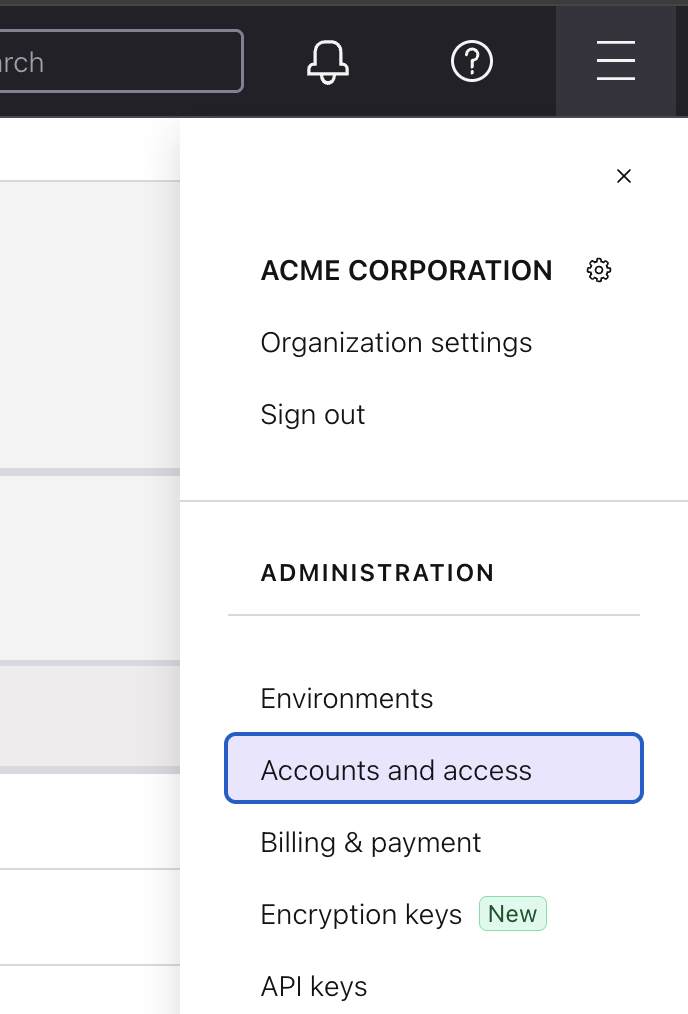
-
In the Accounts tab, select Service accounts and select Add service account.
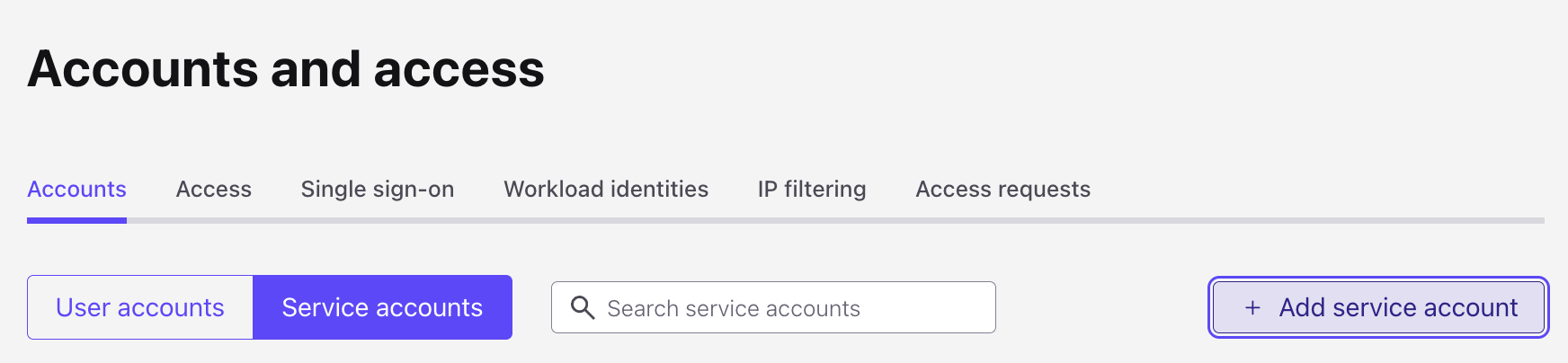
-
Enter a name and description for the service account and select Next.
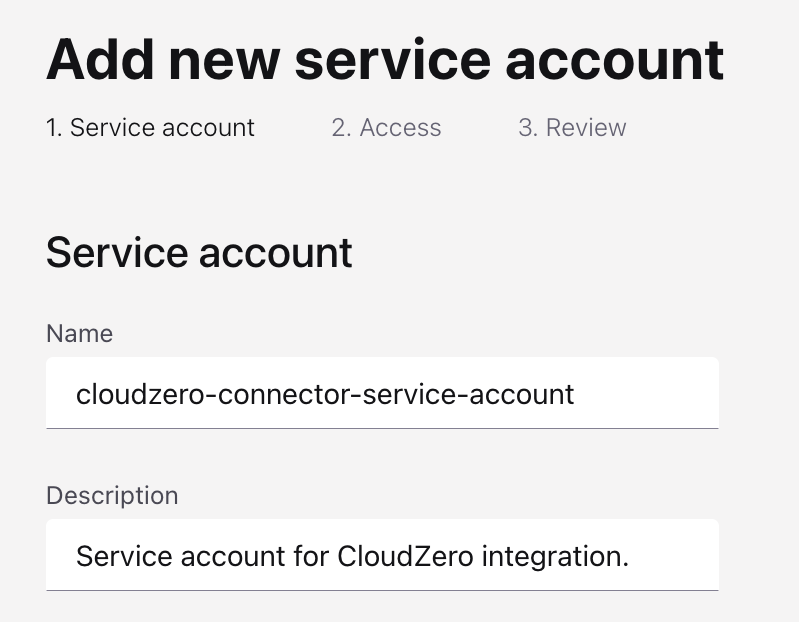
-
Select the top-level Organization in the left sidebar, then select Add role assignment.
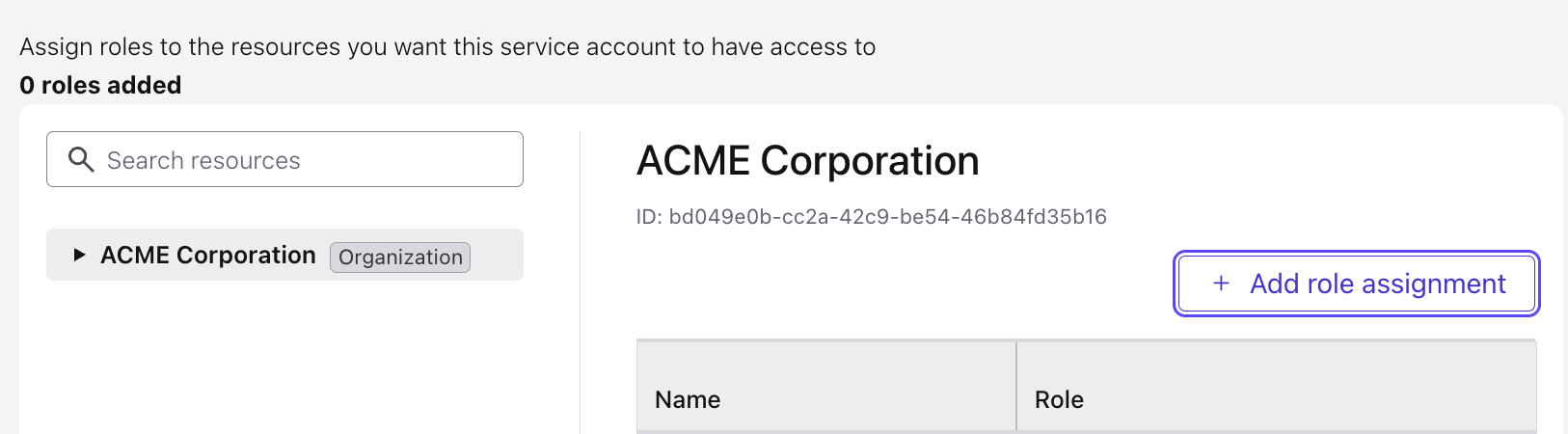
-
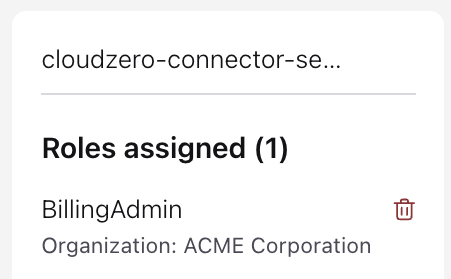
Select the BillingAdmin role from the role list and select Add.
-
Confirm that BillingAdmin appears in the Roles assigned section, then select Next.
-
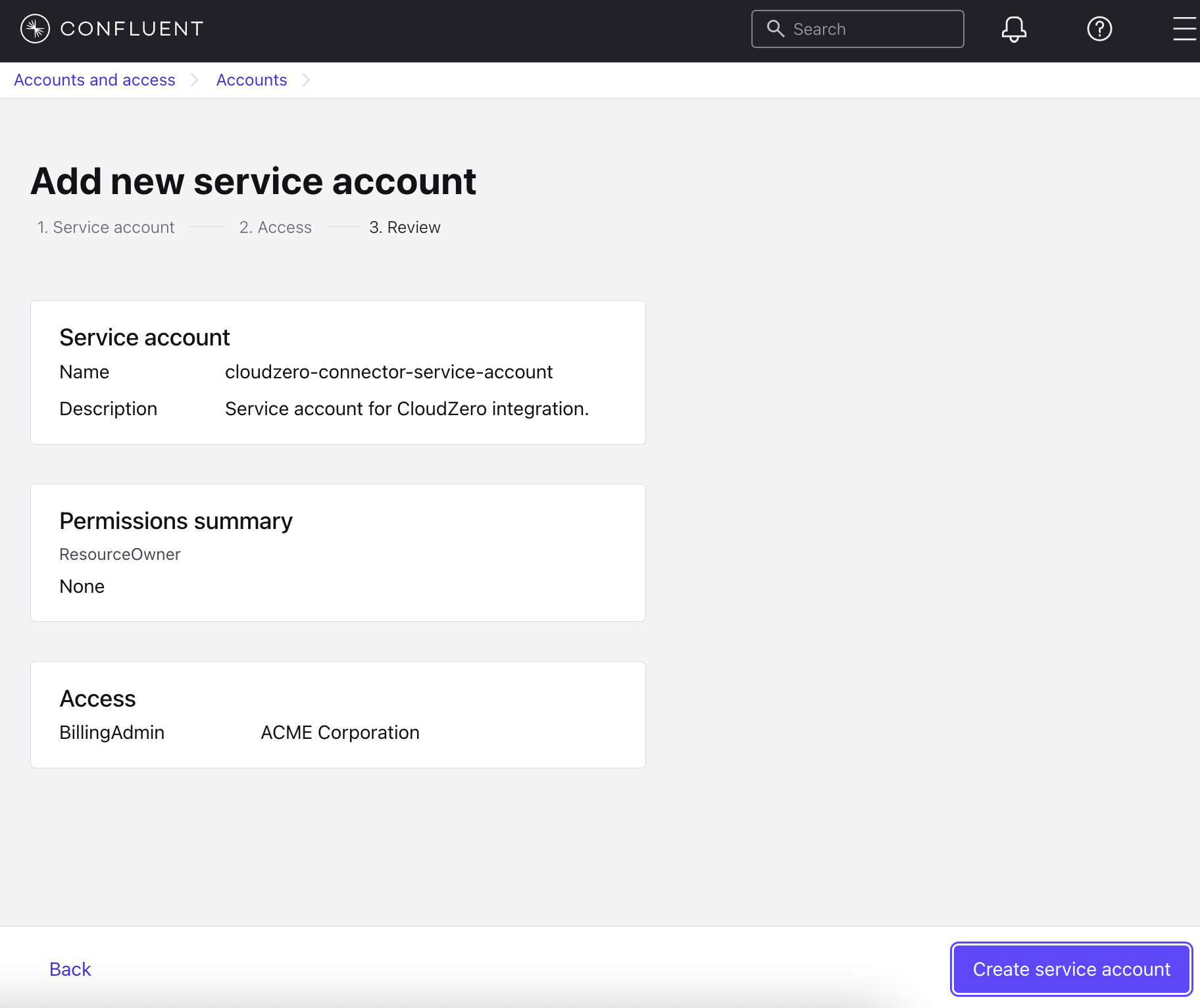
Review the service account details and select Create service account.
Step 2: Create an API key
-
In Confluent Cloud, navigate to API Keys from the top-right menu.
-
Select Add API key.
-
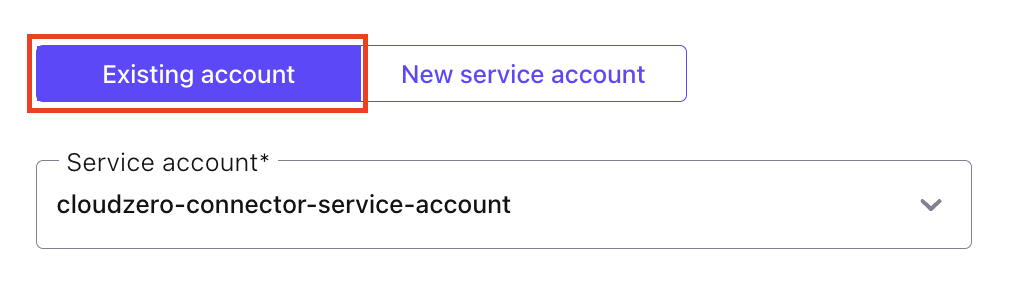
Select Service account as the account type.
-
In the Existing account section, choose the service account you created in Step 1, then select Next.
-
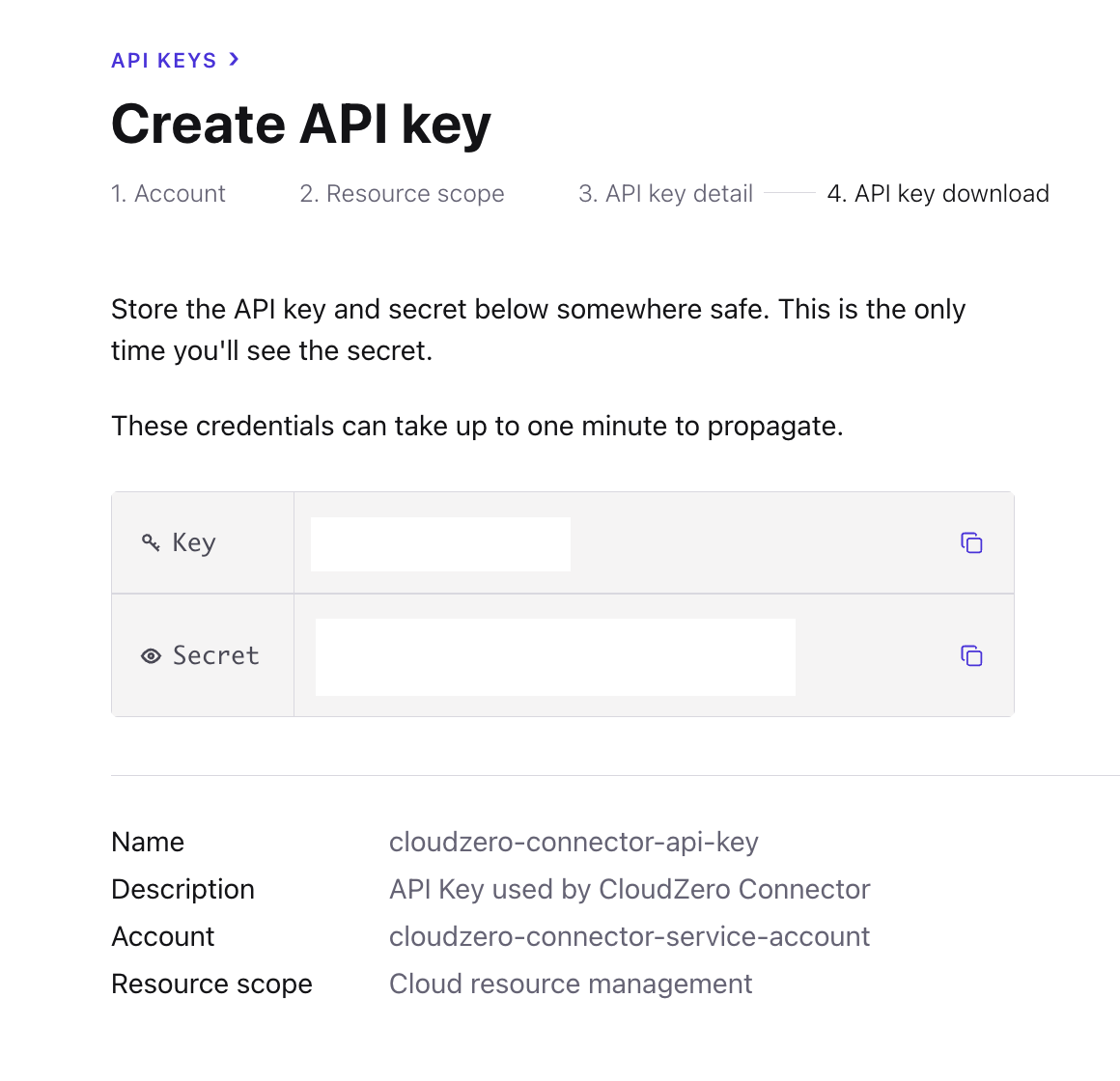
Select the Cloud resource management resource scope and select Next.
-
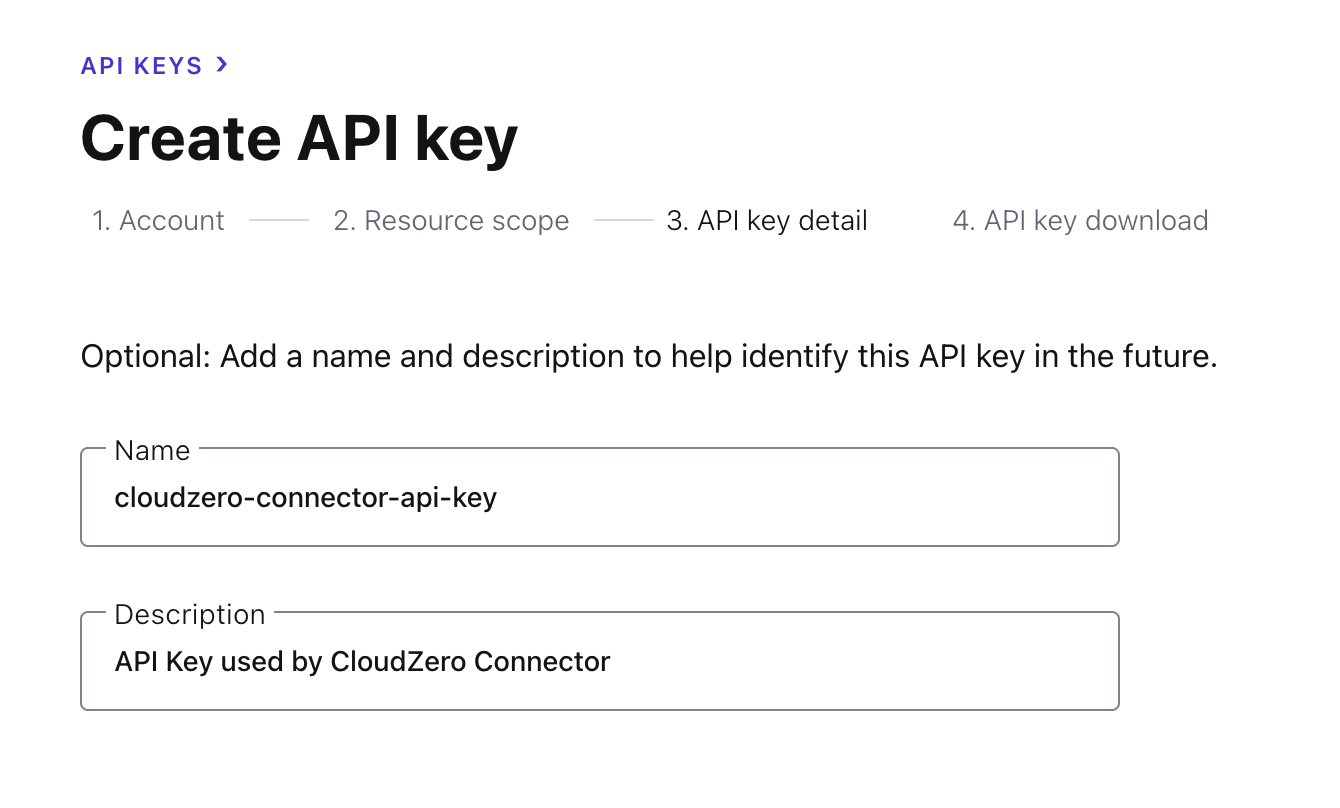
Optionally, enter a name and description for the API key, then select Create API key.
-
Copy and save both the API key and secret. You need these in Step 3, and the secret is not shown again after you close this dialog.
Step 3: Configure the connection in CloudZero
-
In CloudZero, go to Settings > Connections.
-
Select Create Connection + and select the Confluent tile.
-
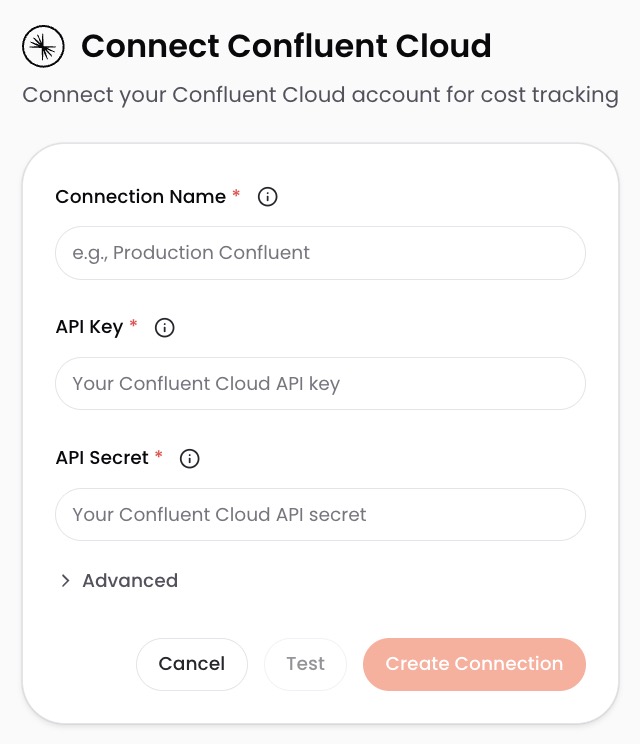
Enter a Connection Name. This label identifies the connection throughout CloudZero.
-
Paste the API key and secret from Step 2 into the API Key and API Secret fields.
-
Select Create Connection. CloudZero validates your credentials and creates the connection.
What to expect
After CloudZero validates the connection, it begins pulling your Confluent cost data. Cost data appears in the Explorer within 24 hours.
Have questions or feedback? Reach out to your account manager.
Updated 15 days ago