

Connecting to GCP
Connect your Google Cloud accounts to CloudZero to bring your GCP cost data into a unified view of all your cloud spend. CloudZero organizes your GCP costs, along with your other cloud costs, into categories (called Dimensions) that matter most to your business. For example: business unit, team, product, feature, environment, customer, or virtually anything else. Once connected and organized, you can quickly answer questions about your cloud spend that matter to your stakeholders.
This guide covers connecting your GCP billing data. CloudZero reads your billing data from a Cloud Billing export to BigQuery table using a read-only service account with the BigQuery Data Viewer role.
For full details on what CloudZero accesses, see GCP Permissions and Security.
Overview
Connecting a GCP billing account takes five steps:
- Retrieve your table name from BigQuery
- Configure the connection in CloudZero
- Grant CloudZero read access to your billing data
- Verify the connection
- Connect GCP Recommender (optional)
What you need
- CloudZero user with data configuration permissions
- A GCP Detailed usage cost data export to BigQuery. If you do not have one, follow Google's guide to set up Cloud Billing data export to BigQuery and select Detailed usage cost data as the export type. New exports can take 24-48 hours to produce their first data drop.
- Permission to share BigQuery tables in the project that contains your billing export
Step 1: Retrieve your table name from BigQuery
- In the Google Cloud console, navigate to BigQuery.
- In the navigation panel, expand the project and dataset that contain your billing export, then select the table that starts with
gcp_billing_export_resource_v1_. - Copy the fully qualified table name from the Table ID field. You will paste this into CloudZero in Step 2.
The table name has three parts:
| Component | Example |
|---|---|
| Project ID | billing-administration-123456 |
| Dataset | all_billing_data |
| Table name | gcp_billing_export_resource_v1_123456_123456_123456 |
The full value combines all three: billing-administration-123456.all_billing_data.gcp_billing_export_resource_v1_123456_123456_123456
The table name always includes the word
resource. If it does not, confirm your export type is Detailed usage cost data.
Step 2: Configure the connection in CloudZero
-
In CloudZero, go to Settings > Connections.
-
Select Create Connection +.
-
Select the GCP tile, then choose Get Started on the GCP Billing tile.
-
Enter a Connection Name. This name appears throughout CloudZero alongside your GCP account ID.
-
Copy the Service Account ID value shown on the page. You will need this in Step 3.
-
Paste the table name you copied in Step 1 into the Fully Qualified Table Name field.
-
Review the Convert all currency to USD setting. This is selected by default. Deselect it to keep your GCP account's local currency. If you connect accounts in different currencies, totals across connections reflect the mixed currencies. For consistent reporting, most organizations keep the default enabled.
The currency setting cannot be changed after the connection is created. If you need to change it later, reach out to your account manager.
-
Select Save & Connect.
Your connection appears in the Billing Connections table and may show an error status until you complete Step 3. This is expected and resolves automatically after you grant access.
Step 3: Grant CloudZero read access to your billing data
- In the Google Cloud console, navigate to BigQuery in the project that contains your billing export.
- Select your billing data export table.
- Select +SHARE.
- Select +ADD PRINCIPAL.
- In the New principals field, paste the Service Account ID you copied in Step 2.
- In the Role field, select BigQuery Data Viewer.
- Select Save.
Step 4: Verify the connection
- In CloudZero, go to Settings > Connections.
- Select your GCP connection in the Billing Connections table.
- Confirm that the Fully Qualified Table Name matches the table name you copied in Step 1 and that the Service Account ID matches the value you used in Step 3.
CloudZero periodically scans the connection. Once it detects that access has been granted, the status changes to Pending Data while CloudZero processes the first ingest.
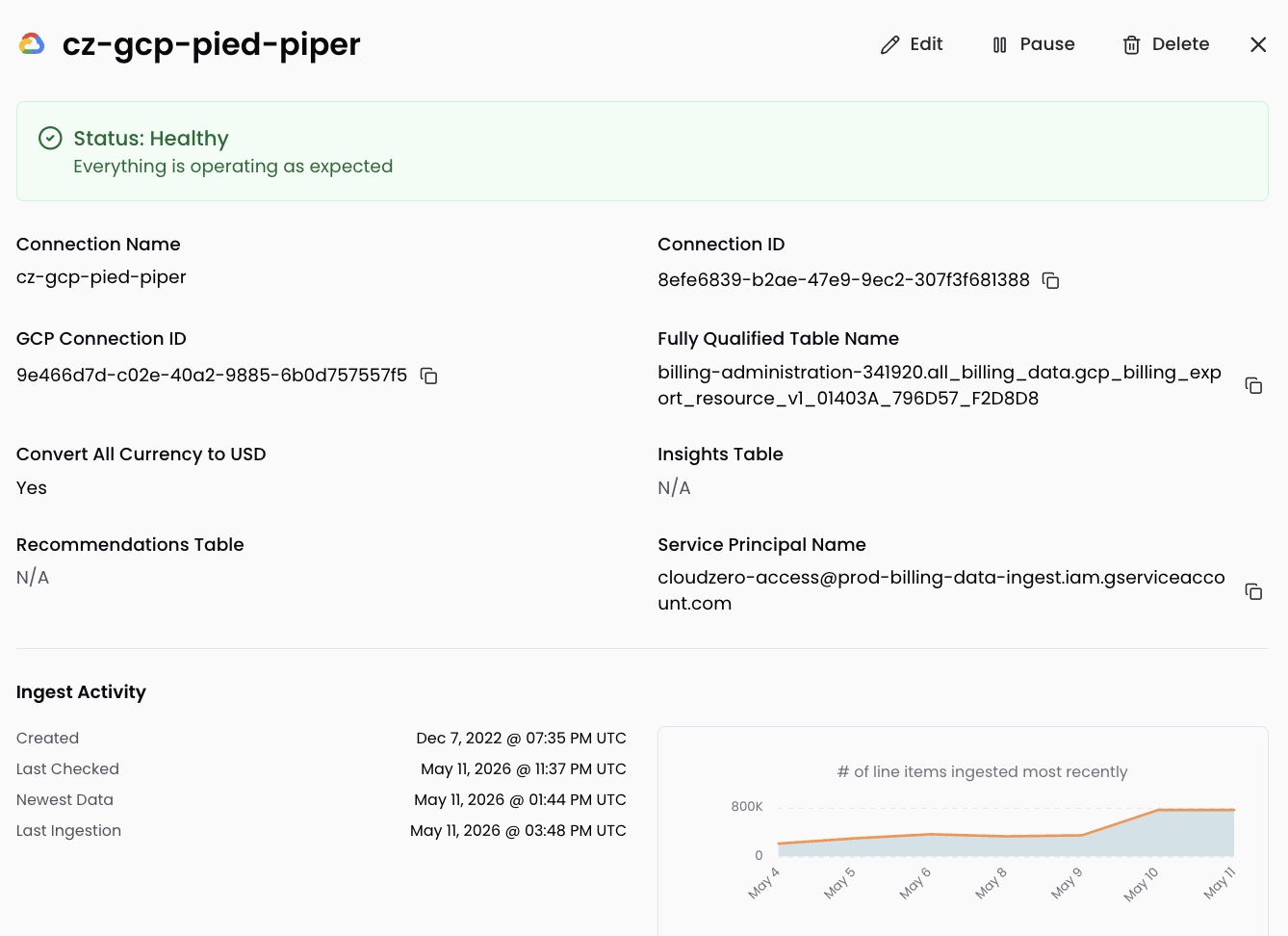
If the status still shows an error after 24 hours, reach out to your account manager.
Step 5: Connect GCP Recommender (optional)
CloudZero Optimize centralizes optimization recommendations from all your cloud providers alongside recommendations that CloudZero generates automatically. Connecting GCP Recommender feeds your Google Cloud recommendations into Optimize so they appear in one place with the rest of your savings opportunities. See GCP Recommender to set it up.
What to expect
After CloudZero processes the first data ingest, the connection status changes from Pending Data to Healthy. This can take up to an hour. Cost data appears in the Explorer within 24 hours.
If you are connecting a newly created billing export, GCP loads historical data in chronological order, so older billing periods appear first. If you are connecting an existing export that already contains data, CloudZero processes the most recent billing data first.
You can connect additional GCP billing accounts at any time by repeating this process.
Have questions or feedback? Reach out to your account manager.
Updated 30 days ago