

Recommendations
The Recommendations tab is where you find, review, and act on CloudZero's optimization recommendations. Each recommendation identifies a specific resource, the estimated savings, and guidance on how to address it.
In CloudZero, select Optimize from the left navigation, then select the Recommendations tab.
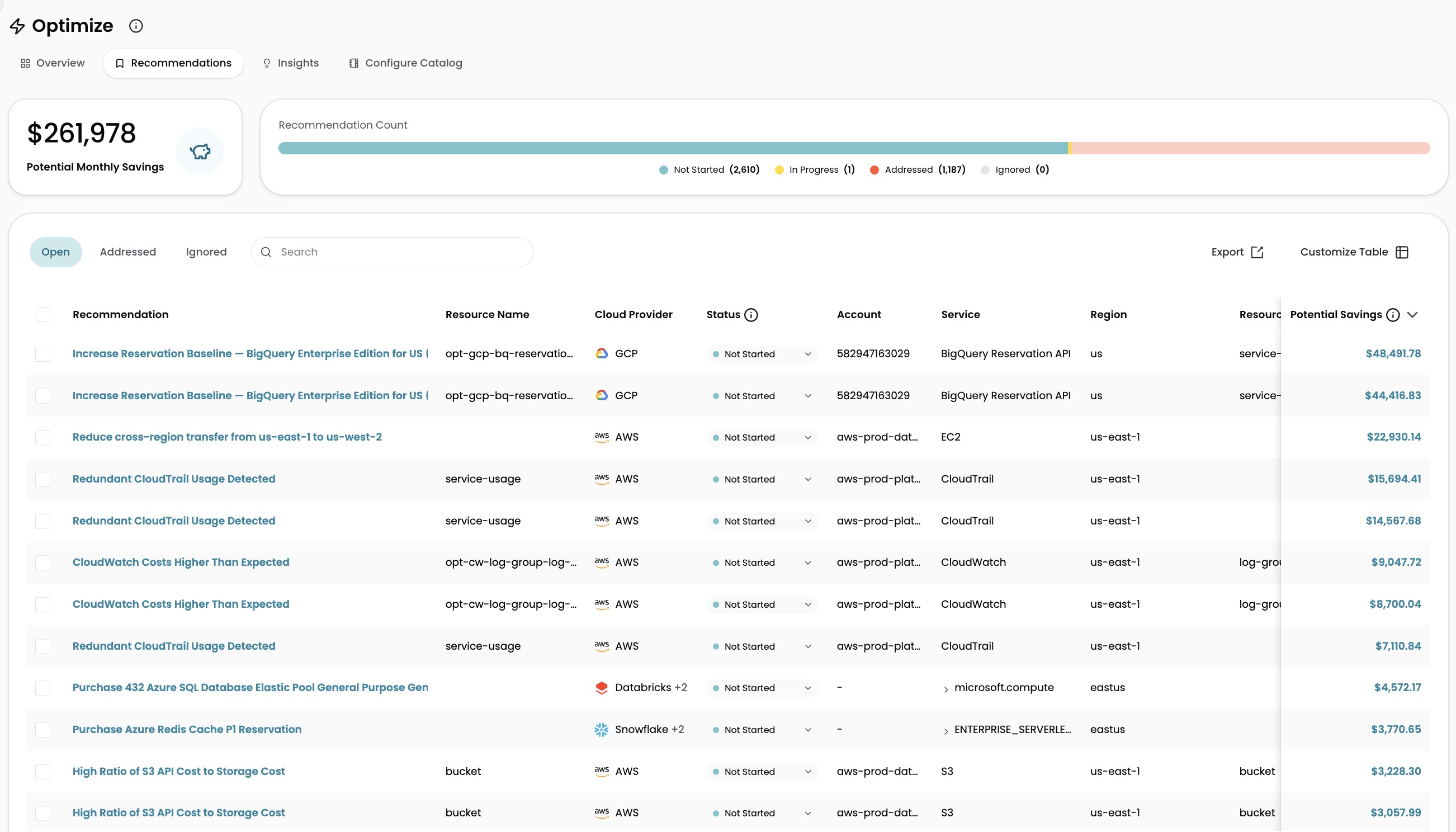
How recommendations work
CloudZero uses recommendation types to identify optimization opportunities. A recommendation type is a specific pattern CloudZero evaluates (for example, rightsizing an over-provisioned compute instance or purchasing a reservation to cover on-demand spend). When a resource matches a recommendation type's criteria, CloudZero generates a recommendation with the affected resource and estimated savings.
For example, if two database instances are over-provisioned, CloudZero generates two separate recommendations based on the same recommendation type. For the full list of recommendation types by provider, see Recommendations for AWS, Azure, GCP, and Kubernetes.
Find recommendations
The recommendations table includes controls to search, filter, group, and customize the display.
Search
Click the search text field above the table and type your query. Search matches across the recommendation ID, title, and other properties in the table.
Filter
Filters let you narrow the table to specific recommendations. You can apply filters to most Dimensions and recommendation properties, use operators such as is or is not, and combine multiple filters.
To apply a filter:
- Click the Add Filter button above the table.
- Navigate through the filter menu or use text search to find the filter you want.
- Click the filter to apply it.
You can filter by the following properties:
| Filter | Description |
|---|---|
| Account | The IDs for the cloud account where the resource is located (Azure subscription ID, GCP project ID, AWS account ID) |
| Category | The type of recommendation (for example, optimization) |
| Cloud Provider | The cloud provider where the resource is located (AWS, Azure, GCP) |
| Effort | How much effort is required to address the recommendation: Low, Medium, or High |
| Recommendation Type ID | Unique identifier for the recommendation type |
| Potential Savings | The estimated potential savings from addressing the recommendation, calculated based on real cost against a projected 30-day window |
| Region | The cloud region where the resource is located |
| Resource Name | The resource name associated with the recommendation |
| Resource Type | The resource type (for example, BigQuery: job or S3: bucket) |
| Service | The cloud provider service type for the resource |
| Source | The source of the recommendation (for example, CloudZero) |
| Title | A short statement describing the recommended action |
| Work Item | The Jira work item associated with the recommendation |
| Additional Dimensions | Any custom CloudZero Dimension your organization has defined. Reach out to your account manager to enable additional Dimensions for filtering. |
Quick filters
Quick filters above the table let you switch between recommendation states with one click:
| Quick filter | Shows |
|---|---|
| Open | Recommendations with a status of Not Started or In Progress |
| Addressed | Recommendations marked as Addressed, either manually or through automatic detection |
| Ignored | Recommendations with a status of Ignored |
Group
Group recommendations by any property to organize the table. The total potential savings for each group is shown beside the group name. When a group is applied, sorting by a column applies within each group.
To group recommendations:
- Select the Group By control above the table.
- Choose a property to group by.
To remove groupings, select None.
Columns
Select the Columns button above the table to choose which properties are displayed. This controls which columns appear without filtering out any recommendations. Available columns include all enabled CloudZero Dimensions.
View recommendation details
Select a recommendation to open a side panel with three tabs:
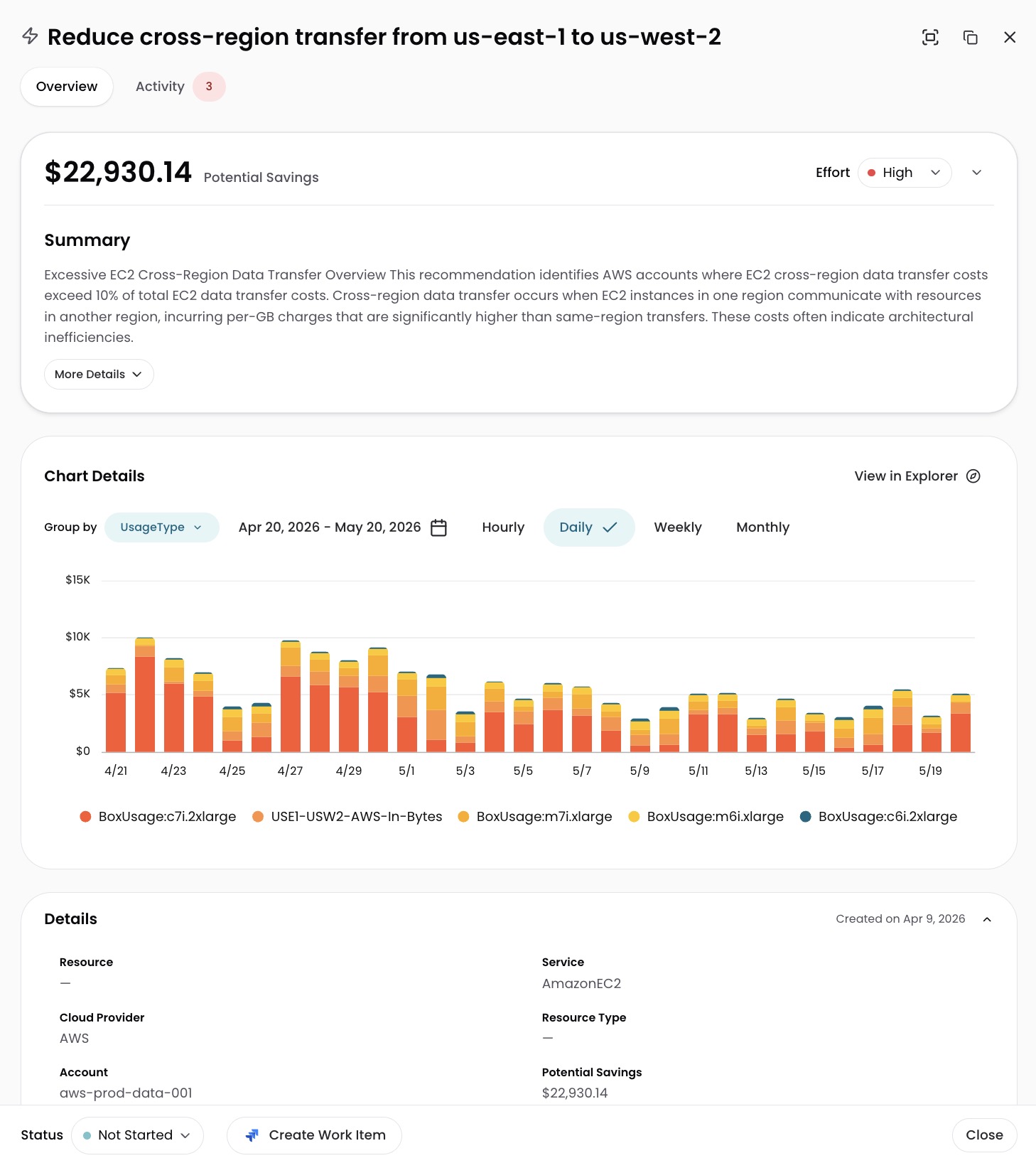
- Overview: Description of the recommendation, how it was generated, and steps to address it. Includes a cost graph showing real cost over the past 30 days for the associated resource. Select View in Explorer to investigate the cost data further.
- Resource Details: Configuration details and tags for the resource, such as instance type, region, and any applied tags.
- Activity: A log of all actions taken on the recommendation, including creation, status changes, and comments. You can add, edit, and delete comments to coordinate with your team on how to address the recommendation.
Take action on recommendations
Select one or more recommendations to display the action bar above the table. The action bar lets you update multiple recommendations at once.
| Action | Description |
|---|---|
| Change Status | Set to Not Started, In Progress, Addressed, or Ignored |
| Change Effort Level | Set to Low, Medium, or High (each recommendation includes a default) |
| Create Jira Work Item | Create a Jira ticket linked to the selected recommendations. See Jira Integration for setup details. |
| Post Comment | Add a comment to the selected recommendations |
Recommendation statuses
Recommendations move through statuses as you work on them:
- Not Started: The recommendation has been identified but no action has been taken.
- In Progress: Someone is actively working on the recommendation.
- Addressed: The recommendation has been acted on, either by marking it manually or through automatic detection by CloudZero. Addressed recommendations contribute to realized savings.
- Ignored: The recommendation has been reviewed and dismissed. Ignored recommendations continue to be updated, but notifications are no longer sent.
Manage recommendation types
You can control which recommendation types CloudZero evaluates for your organization through the Configure Catalog tab on the Optimize page. The catalog lists all available recommendation types and shows how many are enabled.
When you disable a recommendation type, CloudZero stops evaluating it and hides existing recommendations of that type. Changes take effect during the next daily analysis cycle. You must have a role with Read and Write permissions for Optimize to access these settings.
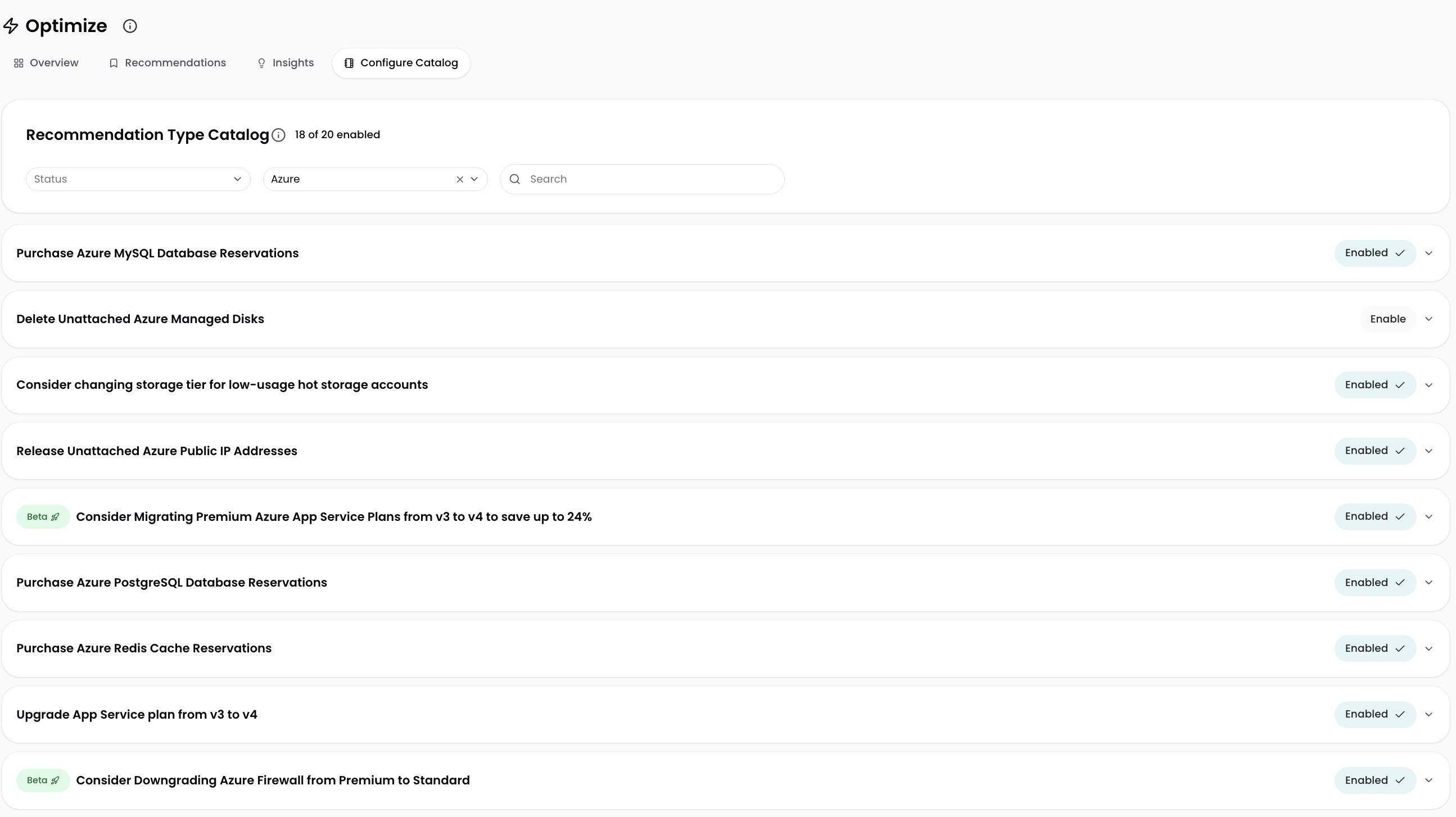
Find recommendation types
The catalog includes filters to help you find specific recommendation types:
- Status: Filter by Enabled or Disabled.
- Provider: Filter by provider (AWS, Azure, Databricks, GCP, Kubernetes).
- Search: Type in the search field to find recommendation types by name.
Enable or disable a recommendation type
- On the Optimize page, select the Configure Catalog tab.
- Find the recommendation type you want to change using the filters or search.
- Click Enable or Enabled to toggle the recommendation type on or off.
Click a recommendation type to expand it and see details about what it identifies, how it works, and its cost impact.
The catalog only shows recommendation types for providers you have connected to CloudZero.
Have questions or feedback? Reach out to your account manager.
Updated about 1 month ago