

Configure Anomaly Notifications
CloudZero detects global anomalies automatically across your accounts, services, and usage families. To receive notifications for anomalies within a specific View, you enable anomaly notifications and configure where those alerts are delivered. For details on viewing, investigating, and managing anomalies, see Anomaly Detection.
Enable anomaly notifications for a View
When creating or editing a View, you can enable anomaly notifications so your team is alerted through Slack, email, or Google Chat when CloudZero detects anomalous spend in that View's costs.
- In the View creation or edit panel, scroll to the Anomalies section.
- Toggle Enable Anomaly Notifications on.
- Choose a threshold:
- Automatic: CloudZero sets the threshold based on the View's spend (see Automatic threshold).
- Manual: Enter a percentage (0-100) of the View's average daily spend. This percentage is required when Manual is selected.
- Optionally, enter a Minimum cost impact in dollars to suppress low-impact anomalies (see Minimum cost impact).
- Configure at least one notification channel:
- Slack: Enter the Slack Channel ID (found in the channel's About tab).
- Email: Enter one or more email addresses, separated by commas.
- Google Chat: Select one or more registered webhooks. See Alerts in Google Chat.
- Click Save.
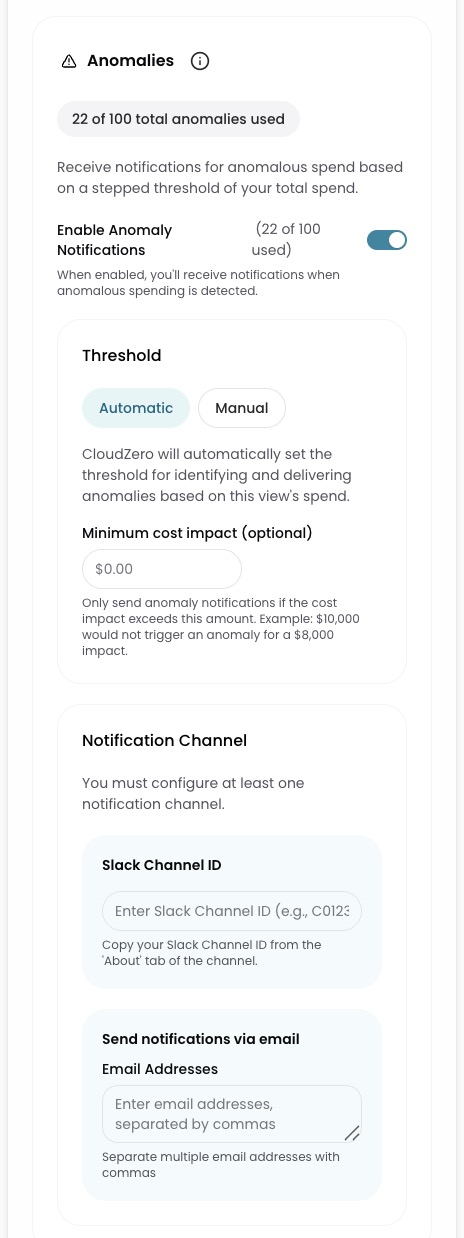
After saving the View, CloudZero begins monitoring the View's costs for anomalies immediately. Notifications are sent once per anomaly through the channels you configured. CloudZero does not send repeated notifications for the same anomaly.
Anomaly thresholds
An anomaly threshold is the minimum cost increase that must occur for CloudZero to flag an anomaly.
| Threshold type | How it works | Applies to |
|---|---|---|
| Automatic | CloudZero sets the threshold based on a sliding scale tied to your 30-day spend. | All anomalies |
| Manual | You set a percentage of the View's average daily spend. | Views only |
| Minimum cost impact | A dollar floor that suppresses low-impact anomalies. Used alongside automatic or manual thresholds. | Views only |
Automatic threshold
CloudZero uses an automatic threshold by default. The threshold is based on a sliding scale tied to the previous 30 days of spend.
- For global anomalies, the 30-day spend is your total cloud spend.
- For anomalies on a View, the 30-day spend is the total View spend.
| 30-day spend | Anomaly threshold |
|---|---|
| $100 or less | $5 |
| $100 to $1,000 | $10 |
| $1,000 to $10,000 | $25 |
| $10,000 to $50,000 | $75 |
| $50,000 to $250,000 | $100 |
| $250,000 to $1,000,000 | $150 |
| $1,000,000 to $5,000,000 | $250 |
| More than $5,000,000 | $500 |
Example: Your organization's total cloud spend over the last 30 days is $2,000,000, giving it an automatic threshold of $250. If daily spend across your accounts increases by $300, CloudZero flags a global anomaly. A View tracking your Data Science team with $40,000 in 30-day spend has its own threshold of $75, so a $100 increase in that team's costs triggers a separate anomaly for that View.
Manual threshold
A manual threshold lets you override the automatic threshold for a View with a custom percentage of the View's average daily spend.
To set a manual threshold, select Manual in the threshold section when enabling anomaly notifications and enter a percentage (0-100).
- The percentage is applied to individual elements of the View's Principal Dimension, not the View's total spend.
- An anomaly is triggered when an element's spend increases by the threshold amount or more over 24 hours.
- Manual thresholds are available only for anomalies on a View. Global anomalies always use the automatic threshold.
Example: Your Engineering team's View has $1,000 in average daily spend, grouped by Product. You set a manual threshold of 50%, which creates a $500 threshold per product. If one product (for example, your payment service) increases from $200 to $750 in a single day, CloudZero flags an anomaly because the $550 increase exceeds the $500 threshold.
Minimum cost impact
Minimum cost impact sets a dollar floor for anomaly notifications, suppressing low-dollar anomalies that meet the percentage threshold but are too small to investigate.
To set a minimum cost impact, enter a dollar amount in the Minimum cost impact field when enabling anomaly notifications.
- An anomaly must exceed both the percentage-based threshold (automatic or manual) and the minimum cost impact to trigger a notification.
- If no minimum cost impact is set, all anomalies that exceed the percentage threshold trigger notifications.
Example: Your DevOps team's View has $1,000 in 30-day spend, giving it an automatic threshold of $10. A $30 increase in a staging account exceeds the threshold, but it's not worth investigating. Setting a minimum cost impact of $50 means your team only gets notified for anomalies that cost $50 or more.
Have questions or feedback? Reach out to your account manager.
Updated 2 months ago