

Create a Grouping Dimension
A Grouping Dimension organizes your costs into categories that matter to your business, like environment, team, or product. You create rules that tell CloudZero how to categorize each cost based on attributes like account names, services, regions, or resource tags. For example, "any cost from an account named prod-account belongs in Production."
Permissions: To create or edit Dimensions, you must have a role with the Modify Dimension Definitions permission.
Step 1: Create the Dimension
- In CloudZero, select Dimension Studio from the left navigation.
- Select + New Dimension.
- Enter a Dimension Key (for example,
TeamorProduct). This identifies your Dimension and becomes its default display name. - Select Grouping and select Create.
Dimension Studio opens your new Dimension for editing.
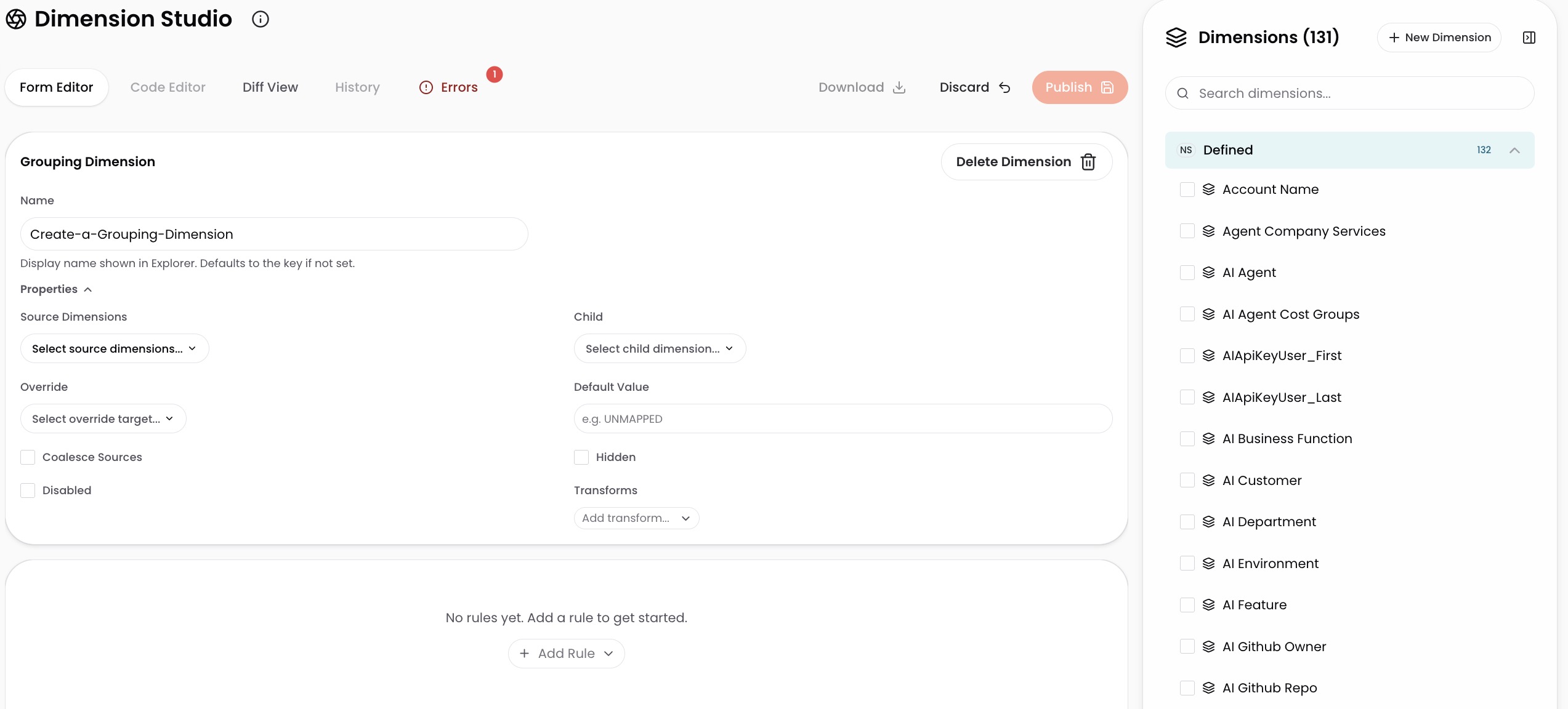
Step 2: Configure Properties (optional)
Expand Properties to configure optional settings. For example, you can set a default value so that unmatched costs are grouped under a named element instead of appearing under Not In Dimension. Most users leave Properties at their defaults when getting started.
For the full list of available Properties, see CostFormation Reference.
Step 3: Add rules (Group, GroupBy)
Select + Add Rule and select a rule type. Most Dimensions use Group rules, GroupBy rules, or a combination of both.
| Rule type | What it does | When to use |
|---|---|---|
| Group | Creates elements that you name explicitly based on conditions you define. | You want specific, business-friendly element names (for example, Production, Finance Team). |
| GroupBy | Creates elements named automatically from existing Dimension values. | Elements should reflect your infrastructure dynamically (for example, one element per account or per service). |
| Metadata | Matches substrings within source values and creates elements from the matched content. | Advanced: extracting identifiers from resource names or tags. See CostFormation Reference. |
Option A: Group
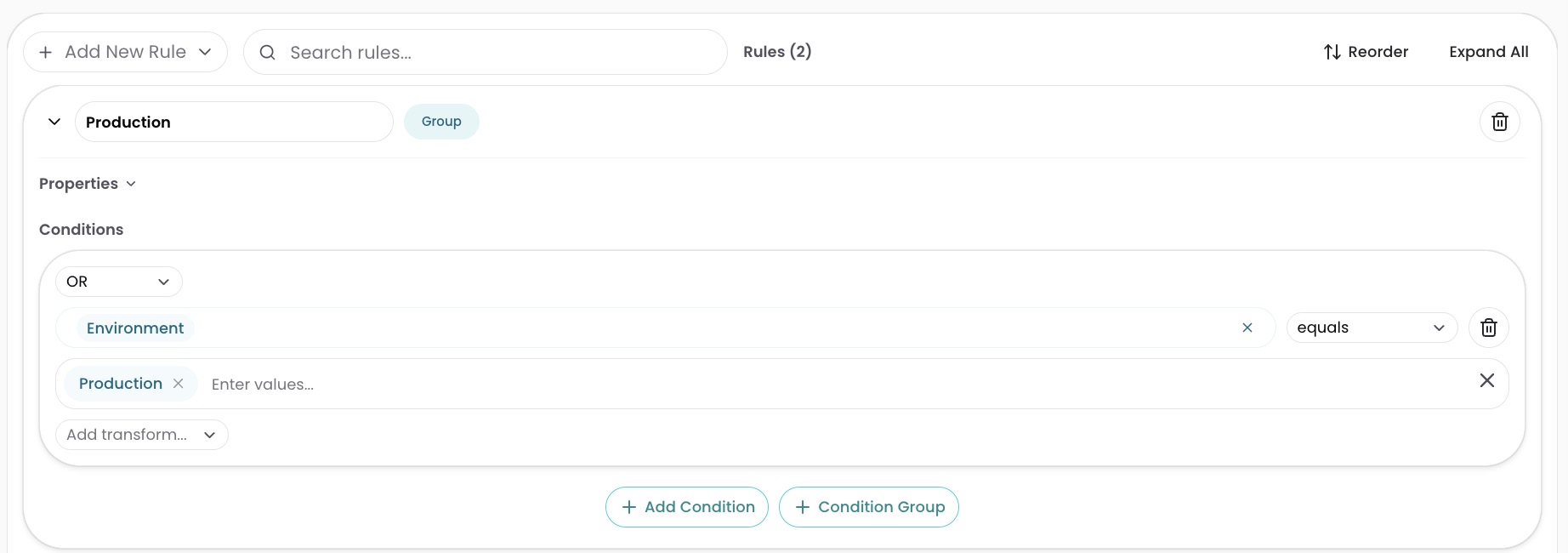
- Replace "New Rule" with your element name (for example,
Production). - Select + Add Condition to define matching criteria:
- Logic operator: Choose OR, AND, or NOT to control how multiple conditions in this block are combined.
- Source: Click the dropdown and select from Organization Dimensions, Cloud Provider Dimensions, Tags, Kubernetes Dimensions, or Kubernetes Labels. You can select multiple sources; they appear as chips.
- Operator: Choose a comparison method (equals, contains, begins with, and others).
- Values: Select Enter values to select from known values in your data, or type a custom value and press Enter.
- Transform (optional): Select Add transform to standardize data before matching (for example, Lower to normalize casing, Trim to remove extra spaces). For the full list, see CostFormation Reference.
- To add more criteria within the same logic block, select + Add Condition. For nested logic (for example,
A AND (B OR C)), select + Condition Group. - To add more rules, select + Add Rule at the top of the rules area.
Option B: GroupBy
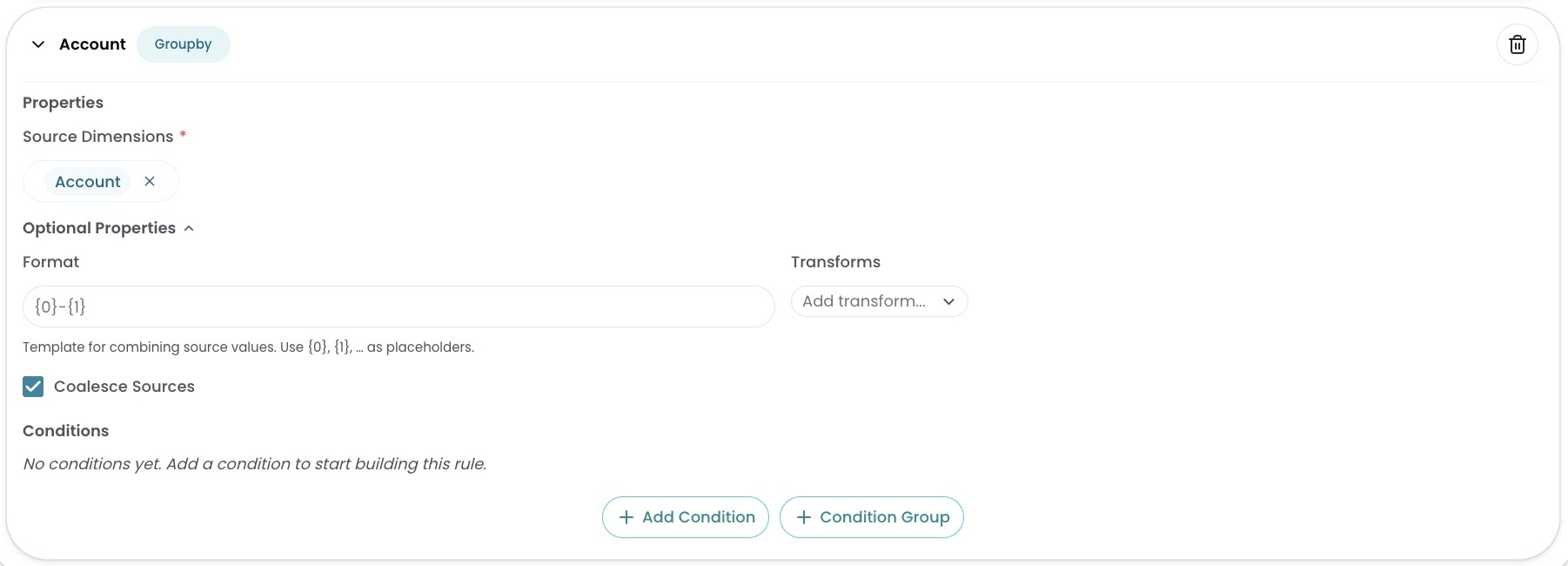
- Select + Add Rule and select GroupBy.
- Select one or more sources whose values become element names (for example, selecting
Account Namecreates one element per account). For all available sources, see CostFormation Reference. - Coalesce Sources (optional): When you have multiple sources selected, this tells CloudZero to use the first value it finds across those sources, in the order they are listed. For example, if a resource has both
Env=prodandEnvironment=live, andEnvis listed first, CloudZero usesprod. - Format (optional): Enter a template to customize element names. Use
{0},{1}as placeholders for source values. For example,{0} - {1}with sourcesAccountandServicecreates elements likeprod-account - S3. - To filter which costs this rule applies to, select + Add Condition and configure criteria.
Rules are evaluated from top to bottom. Once costs match a rule, evaluation stops. Use Reorder to arrange rules from most specific to most general.
For the complete syntax reference (conditions, transforms, sources), see CostFormation Reference. To define Dimensions in YAML instead, see Allocate through YAML with CostFormation.
Step 4: Publish
- Select Publish.
- Wait a few minutes for CloudZero to process your Dimension.
What to expect
After processing, your Dimension appears in the Explorer, Analytics, and other areas of CloudZero where you group or filter costs. Changes are retroactive, applied across your full cost history. Costs are categorized according to your rules, and any cost that does not match a rule appears under Not In Dimension (or under your default value if you set one in Properties). You can edit your rules and republish at any time.
If you also have shared or unattributed costs that cannot be categorized through rules alone, see Create an Allocation Dimension.
Have questions or feedback? Reach out to your account manager.
Updated 5 months ago