

Personal Settings
Customize how CloudZero looks and behaves for you. These settings are personal and do not affect other users in your organization.
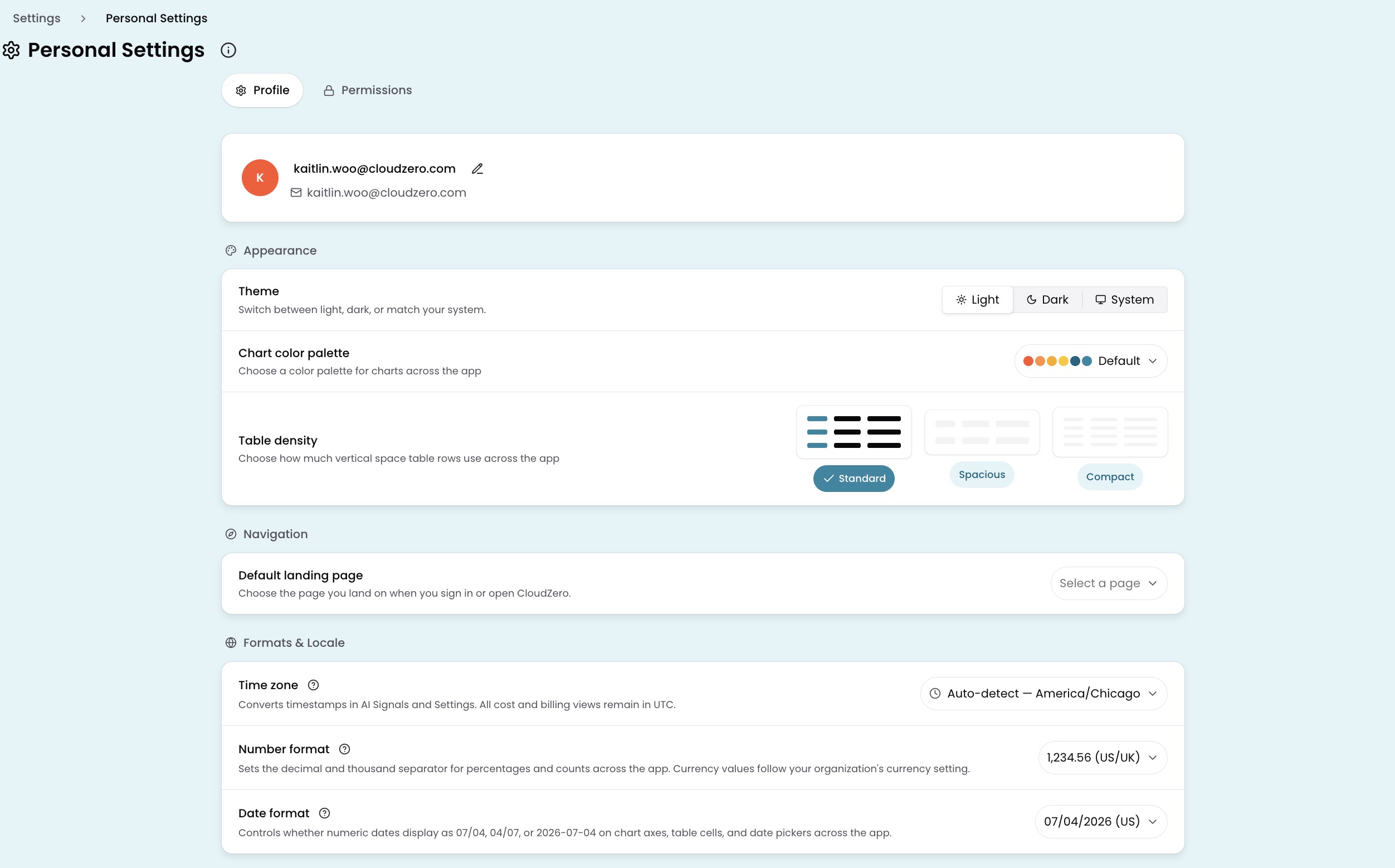
To access your settings, select your profile icon in the bottom left of the navigation sidebar, then select Personal Settings. The settings page has two tabs: Profile and Permissions.
Profile
Manage your display name, visual preferences, navigation, locale, and email notifications from the Profile tab.
Display name
Your display name appears throughout the platform wherever your activity is shown. To update it, select the edit icon next to your name.
Appearance
Control the visual style of the platform.
| Setting | What it controls |
|---|---|
| Theme | Visual style of the platform. Choose Light, Dark, or System (matches your OS setting). |
| Chart color palette | Colors used in charts across the platform. Choose from 6 options. |
| Table density | Vertical spacing of table rows across the platform. Choose Standard, Spacious, or Compact. Also available through the Customize Table panel in Explorer. Both controls stay in sync. |
Navigation
| Setting | What it controls |
|---|---|
| Default landing page | The page that loads when you sign in or navigate to the root URL. Choose any top-level page. If a configured page is unavailable, CloudZero falls back to Explorer. |
| Default Explorer view | The View that Explorer opens on when you start a new session. Choose any View you have access to. You can also set this from the View selector in Explorer. |
Formats & Locale
| Setting | What it controls |
|---|---|
| Time zone | Time zone for timestamps in AI Signals and certain Settings pages. All cost and billing views remain in UTC. Choose Auto-detect to match your device's time zone. |
| Number format | Decimal and thousand separator for percentages and counts across the platform. Choose 1,234.56 (US/UK), 1.234,56 (Europe), or 1 234,56 (France/Brazil). Currency values follow your organization's currency setting. Defaults to 1,234.56 (US/UK). |
| Date format | How numeric dates display on chart axes, table cells, and date pickers across the platform. Choose MM/DD/YYYY, DD/MM/YYYY, or YYYY-MM-DD. Full dates include the year (07/04/2026, 04/07/2026, or 2026-07-04); chart axis labels use abbreviated forms without the year (7/4, 4/7, or 07-04). Dates that use month names (Jul 4, 2026) are unaffected. Defaults to MM/DD/YYYY. |
Notifications
The Platform email notifications toggle controls whether you receive anomaly alerts, budget alerts, and other platform notifications by email. When turned off, you will not receive any email notifications from CloudZero.
For team-level cost alerts delivered to Slack, email, or Google Chat channels, see Notifications.
My Roles
Shows the Roles assigned to you. Select View Role Settings to see full details about each Role. For more about how Roles work, see Users & Permissions.
Permissions
Select the Permissions tab to see a read-only summary of what your assigned Roles grant you access to. This is the combined view across all of your Roles.
To change your permissions, contact an administrator who can update your Role assignments. See View and Manage Roles.
Have questions or feedback? Reach out to your account manager.
Updated 16 days ago