

Send data through the UI as a CSV
Upload a CSV file to CloudZero to create or update a Unit Cost Metric or an Allocation Stream. About 5 minutes for the upload, plus up to 24 hours for ingest. If you're not sure which stream type fits your use case, see Send unit cost and allocation data.
Prepare your CSV
Each row of your CSV represents one measurement at one point in time. The first row must list column names. You can use any names; you'll map them to CloudZero fields during upload.
| Column | Unit Cost Metric | Allocation Stream | Notes |
|---|---|---|---|
| Timestamp | Required | Required | Any common date/time format |
| Unit value | Required | — | Must be greater than 0 |
| Allocation value | — | Required | Must be greater than 0 |
| Element name | — | Required | The entity each row applies to (team, product, customer) |
| Filter columns | Optional | Optional | Up to 5; each value filters the row to a specific subset of spend |
For example, an Environment filter column with values production and development lets you send separate measurements for each environment in the same CSV, even when other fields are identical.
Maximum file size is 3MB.
Sample CSVs
Unit Cost Metric (track cost per customer order, filtered by engineering team):
| Date | Engineering Team | Number Of Orders |
|---|---|---|
| 2024-09-01 | Leonardo | 2717 |
| 2024-09-01 | Raphael | 2779 |
| 2024-09-01 | Michelangelo | 6242 |
Allocation Stream (split a shared database cost across products):
| Date | Team | Database Writes |
|---|---|---|
| 2024-09-01 | 100045 | |
| 2024-09-01 | Messaging | 1000600 |
Upload through the UI
-
Navigate to Settings > Telemetry Streams, then select Create New Stream.
-
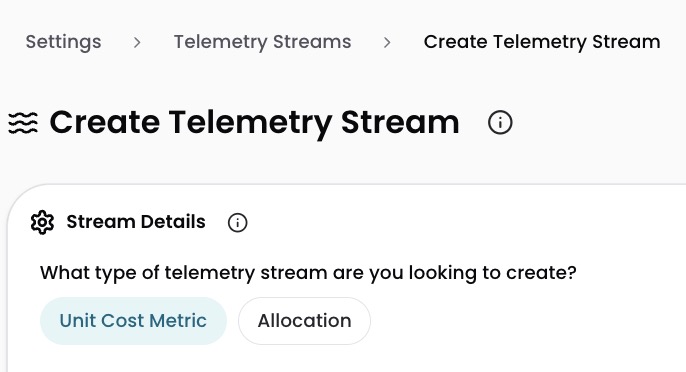
Choose your stream type:
- New Unit Cost Metric for cost-per-X tracking
- New Allocation Stream for splitting shared costs
-
Configure the stream:
- Name (cannot be changed after saving). Up to 256 characters: letters, digits, underscores, periods, or hyphens. For example,
engineering-team-orders. - Description (optional)
- Granularity: Daily (default) or Monthly for unit cost; Hourly, Daily (default), or Monthly for allocation. Cannot be changed after saving. Finer-grained data is aggregated up automatically.
- Fill gaps in time? (optional): carries each value forward into missing timestamps. For example, monthly values of Jan: 20, Feb: 23, (no March), Apr: 25 fill in March: 23.
- Name (cannot be changed after saving). Up to 256 characters: letters, digits, underscores, periods, or hyphens. For example,
-
Upload your CSV file.
-
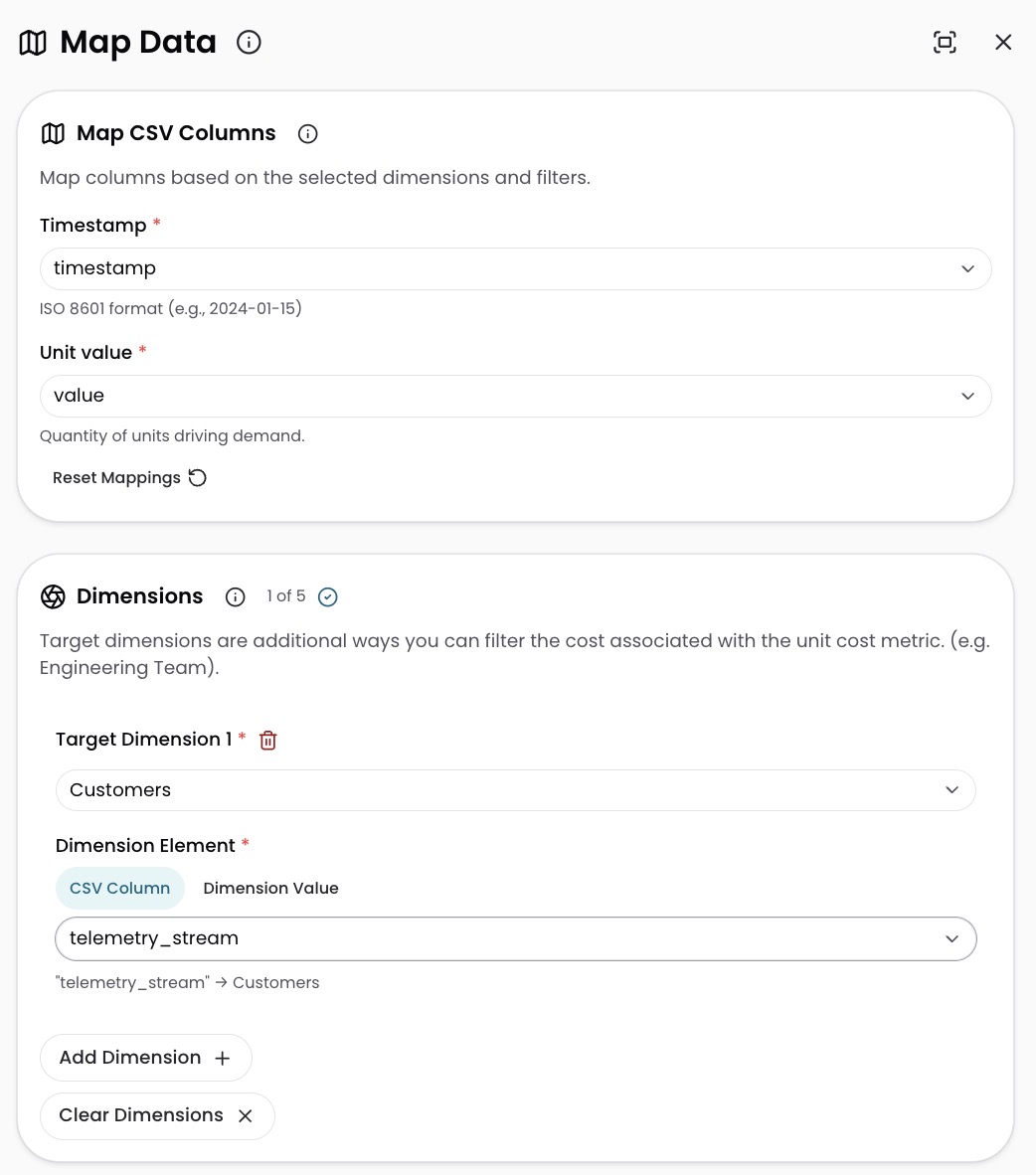
Map columns to CloudZero fields:
- Timestamp: your date/time column
- Unit value or Allocation value: your measurement column
- Element name (Allocation only): your entity column
- Target Dimensions (optional): map each filter column to a Dimension. Select + to add up to 5. Cannot be changed after saving.
-
Review the CSV Reference Table for errors. Edit cells in place, remap columns, or upload a new file if anything looks off. Select Export to CSV to keep a copy of any edits.
- Select Save.
After upload
Your stream appears on the Telemetry Streams page with Pending status. Within 24 hours, the status changes to Available and your data is ready to use:
- Unit Cost Metrics appear in Analytics Dashboards under Unit Metrics > [your stream name] and can be queried in plain English in AI Hub.
- Allocation Streams can be referenced in Splitting Shared Costs using
AllocateByStreams.
Update or replace data
To add records to an existing stream or replace existing ones, upload a new CSV from the stream's details page.
CloudZero compares each row in your new CSV to existing records:
- If everything except the value matches, the existing record is replaced.
- If it doesn't match anything, the row is added as a new record.
For the full update procedure, ingest status meanings, error troubleshooting, and stream deletion, see Manage and troubleshoot streams.
Have questions or feedback? Reach out to your account manager.
Updated 5 months ago