

Organization Settings
Configure preferences that apply to your entire CloudZero organization. These settings control your organization's display name, org-wide messaging, user registration, and default Explorer behavior.
Requires Organization Administration write permission. To navigate to these settings, go to Settings > Organization Settings.
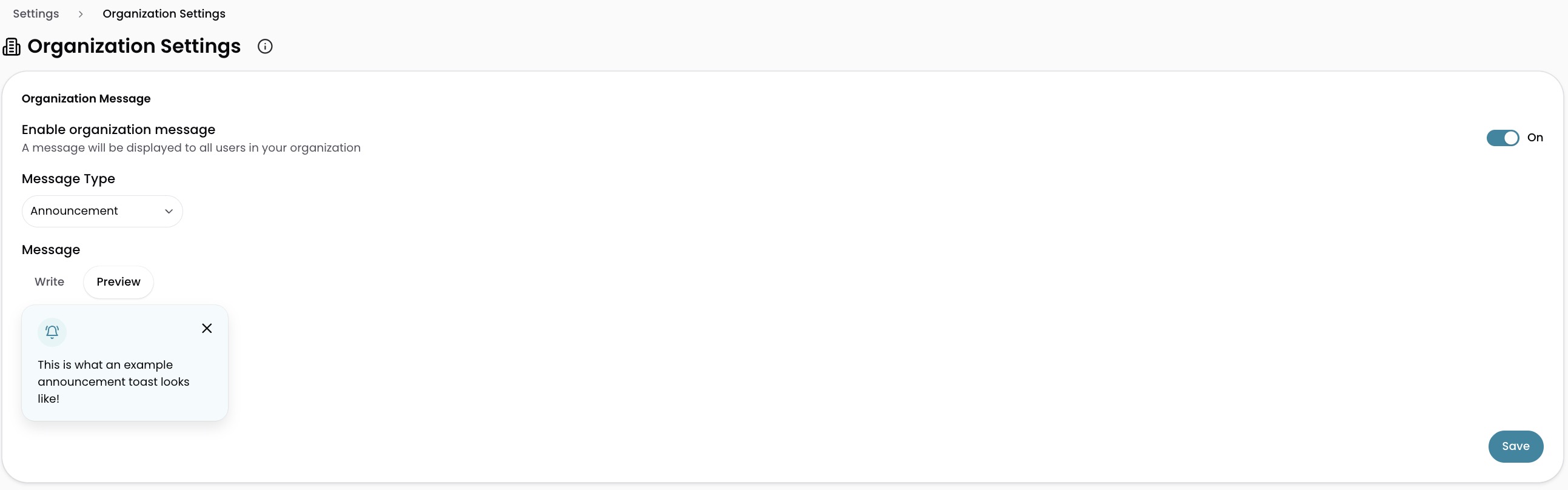
Organization message
Broadcast a message to every user in your organization. When a user dismisses the message, it reappears after one day. Changing the message text resets all dismissals, so every user sees the updated message immediately.
To send a message:
- Toggle Enable organization message to On to display the message configuration fields.
- Select a Message Type from the dropdown:
- Announcement for general updates
- Warning for alerts that need attention
- Problem for issues affecting the organization
- Confirmation for acknowledging a completed action
- Enter your message (up to 500 characters).
- Select Save.
To remove the message: Toggle Enable organization message to Off. The change saves automatically.
Organization name
Set a display name for your organization. This name is visible to all users in your organization.
To change it: Enter a new name in the Organization Name field, select Save, and then select Confirm.

Invite only
Control whether users can self-register for your organization or must be invited first. When this setting is off, any user with a matching email domain can join your organization. When turned on, users must receive an invitation before they can register.
To enable it: Toggle Restrict registration to invited users only to On.

This setting does not apply to organizations with SSO enabled. SSO-provisioned users are managed through your identity provider. For details, see View and Manage your Organization's Users.
Explorer Trends default
Set whether Cost Trends comparison data is shown by default in Explorer for all users in your organization. Cost Trends is on by default. Individual users can still toggle Cost Trends on or off, and that preference persists across browser sessions.
To change it: Toggle Show Trends by Default in Explorer to On or Off.

Billing and SSO
View your organization's billing status and SSO provider at a glance.
| Field | What it shows |
|---|---|
| Billing Status | Whether billing is enabled or disabled for your organization |
| SSO Provider | The name of your SSO provider, or "Not configured" if SSO is not set up |
This section is read-only. To manage SSO, go to Settings > SSO Integrations. To change billing configuration, contact your account manager.
Have questions or feedback? Reach out to your account manager.
Updated about 1 month ago