

Create an Allocation Dimension
An Allocation Dimension splits shared costs across teams, products, or any grouping, using either spend data already in CloudZero or telemetry data you send in. For details on when to use each allocation method, see Splitting Shared Costs.
Permissions: To create or edit Dimensions, you must have a role with the Modify Dimension Definitions permission.
Step 1: Create the Dimension
- In CloudZero, select Dimension Studio from the left navigation.
- Select + New Dimension.
- Enter a Dimension Key (for example,
SharedDatabaseAllocation). - Select Allocation, choose your method, and select Create.
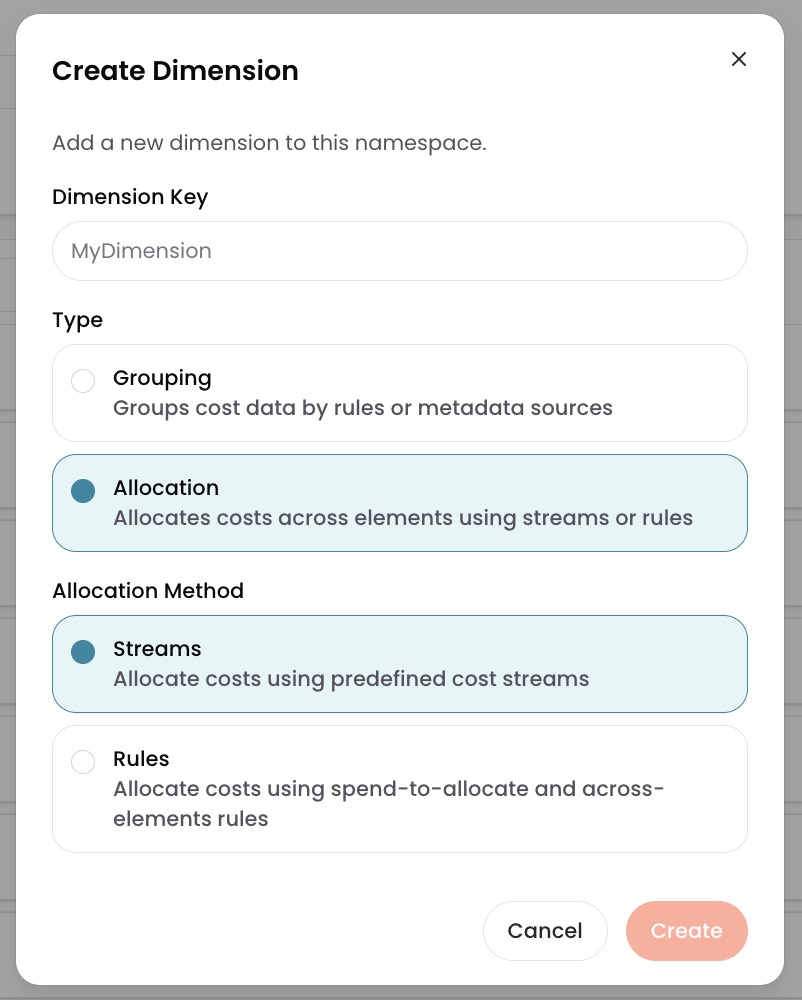
| Method | How it works | When to use |
|---|---|---|
| Allocate By Rules | Splits costs evenly or proportionally using spend data already in CloudZero. No additional data required. | You want to spread shared costs evenly across groups, or use known spend patterns to distribute costs that cannot be directly attributed. |
| Allocate By Streams | Splits costs proportionally using usage data you send to CloudZero from observability, security, marketing, or other sources. | You have usage metrics (such as API calls, query counts, storage per customer) and want allocation based on actual usage. |
For a deeper comparison, see Splitting Shared Costs.
Dimension Studio opens your new Dimension for editing.
Step 2: Configure Properties (optional)
Expand Properties to configure optional settings. For example, you can set a default value so that unmatched costs are grouped under a named element instead of appearing under Not In Dimension. Most users leave Properties at their defaults when getting started.
For the full list of available Properties, see CostFormation Reference.
Step 3: Configure your allocation
In Step 1, you chose Allocate By Rules or Allocate By Streams. Follow the matching section below.
Option A: Allocate By Rules
-
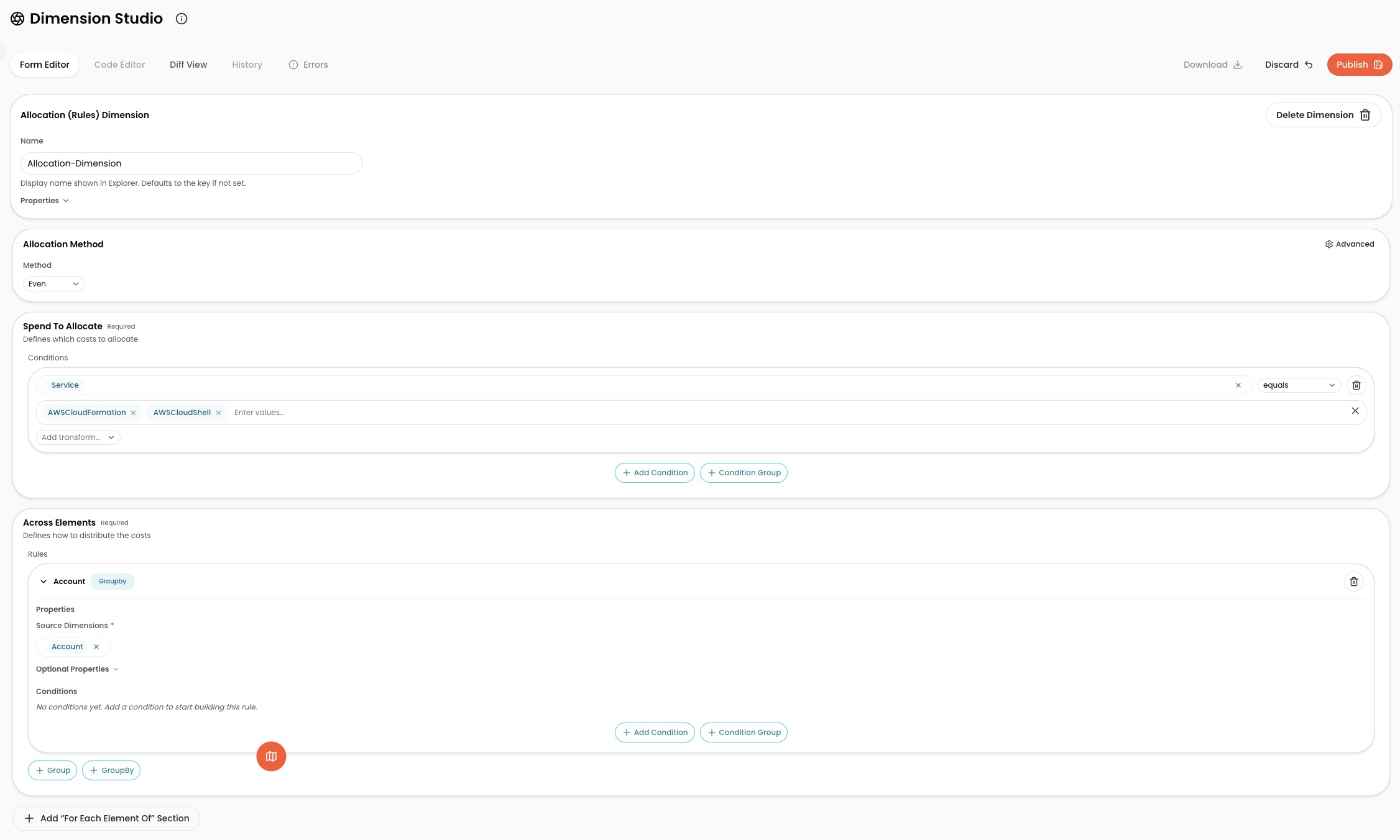
Choose an allocation method: Select Even (split equally across all elements, such as team names or product names) or Proportional (split based on each element's share of existing cloud costs). See Allocate By Rules for details on each method.
-
Define what costs to split: In the Spend To Allocate section, select + Add Condition and configure:
- Source: Select from Organization Dimensions, Cloud Provider Dimensions, Tags, Kubernetes Dimensions, or Kubernetes Labels to identify the shared costs (for example,
ServiceorAccount). - Operator: Choose a comparison method (for example, equals).
- Values: Select or type the values that match the shared resource (for example, a database service or a shared account).
- Add more conditions as needed to narrow the scope.
- Source: Select from Organization Dimensions, Cloud Provider Dimensions, Tags, Kubernetes Dimensions, or Kubernetes Labels to identify the shared costs (for example,
-
Define who receives the allocated costs: In the Across Elements section, select + Add Rule and select a rule type:
- GroupBy (typical): Select a source Dimension to distribute costs across (for example,
TeamorProduct). CloudZero creates one element for each value in the source. - Group: Define specific named elements with conditions if you need explicit control.
- GroupBy (typical): Select a source Dimension to distribute costs across (for example,
-
Split further within each group (optional, Proportional only): If the allocated costs need to be broken down again, select + Add ForEachElementOf at the bottom of the Across Elements section and select a Dimension. For example, split shared database costs across teams, then within each team split across namespaces. For syntax details, see CostFormation Reference.
Option B: Allocate By Streams
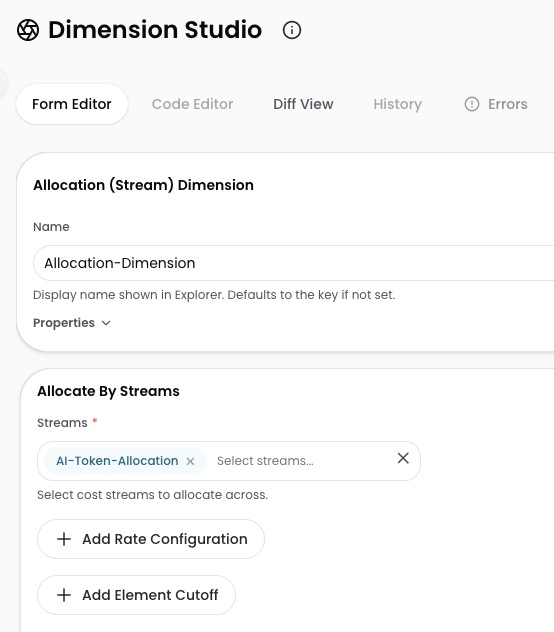
You must have telemetry streams configured and sending data to CloudZero before using this method. See Splitting Shared Costs for details on how telemetry-based allocation works, and Telemetry Streams for setup instructions.
- In the Allocate By Streams section, click the Streams field.
- Search for and select one or more telemetry streams (for example,
api-calls-by-team).
Step 4: Publish
- Select Publish.
- Wait a few minutes for CloudZero to process your Dimension.
What to expect
After processing, your Allocation Dimension splits costs across elements according to your rules or telemetry data. Changes are retroactive, applied across your full cost history. Allocation adjusts automatically as spend patterns or usage data change. You can edit your configuration and republish at any time.
To see allocated costs alongside your other costs, combine this Allocation Dimension with your existing Grouping Dimension:
- In Dimension Studio, open your Grouping Dimension (for example, Team or Product).
- Select + Add Rule and select GroupBy.
- Select this Allocation Dimension from the source dropdown (under Organization Dimensions).
- Select Publish.
CloudZero merges the allocated costs into the same elements as your dedicated costs, giving you a single Dimension that shows the full picture. See Splitting Shared Costs for details.
Have questions or feedback? Reach out to your account manager.
Updated 5 months ago