

Grouping, Filtering, and Time Range
Explorer lets you answer any cost question: by team, by service, by provider, across any time range. Five settings shape your query: grouping, filters, time range, granularity, and cost type. The fastest way to set them is to describe what you want in plain English. Type "Show our OpenAI spend by team for the last 3 months" and Explorer configures everything in one step. You can also adjust each control individually using the sections below.
Build your query with AI using Filter Assist
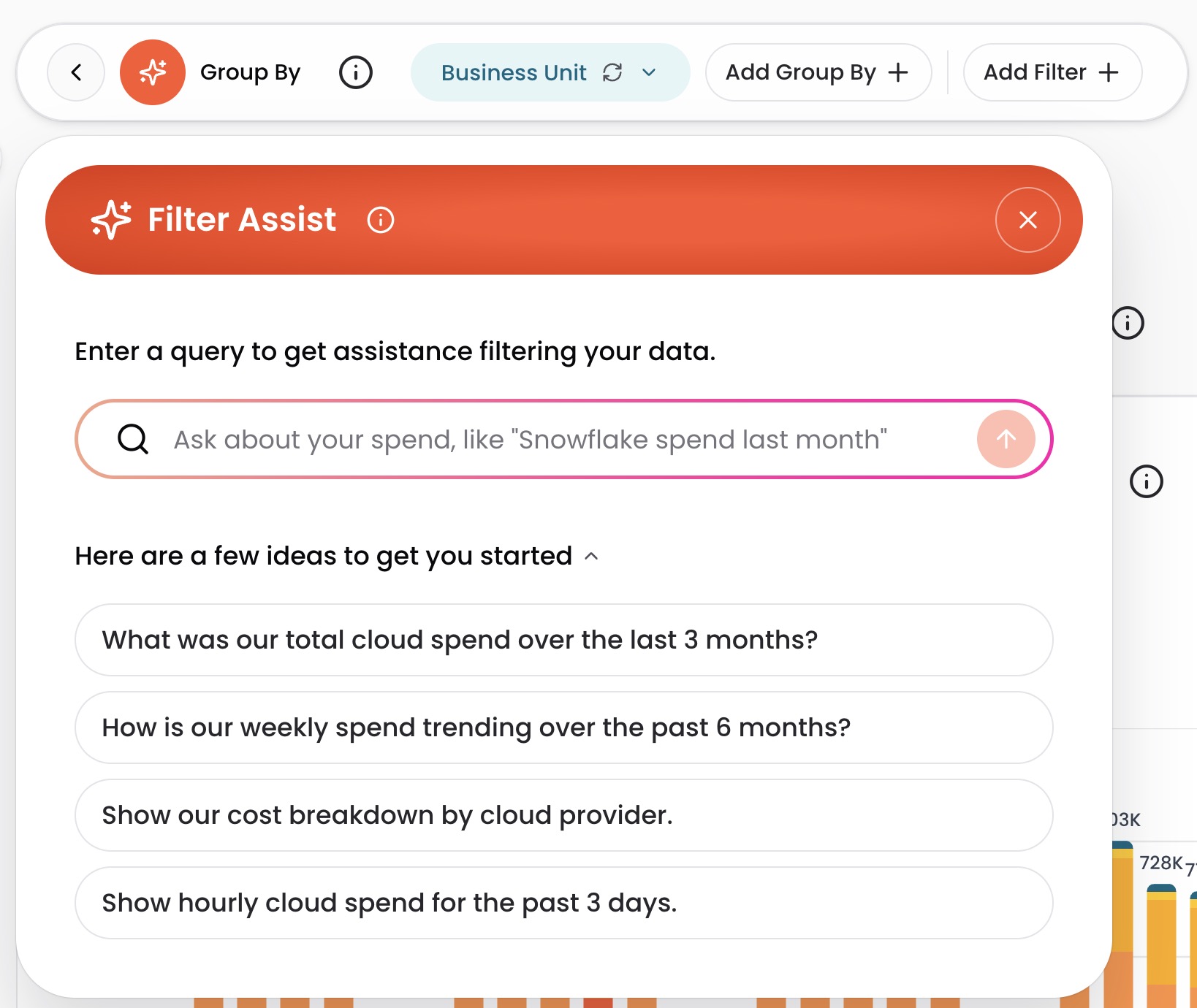
Filter Assist uses AI to configure your Explorer query from a plain English question. No need to know which settings to change.
- Click the sparkle icon (✨) next to the expression builder.

- Enter your question in plain English, or click one of the suggested queries. Filter Assist applies the right grouping, filters, time range, granularity, and cost type based on your question.
- Explorer updates instantly. Every setting Filter Assist applies is visible in the standard controls. Nothing is hidden.
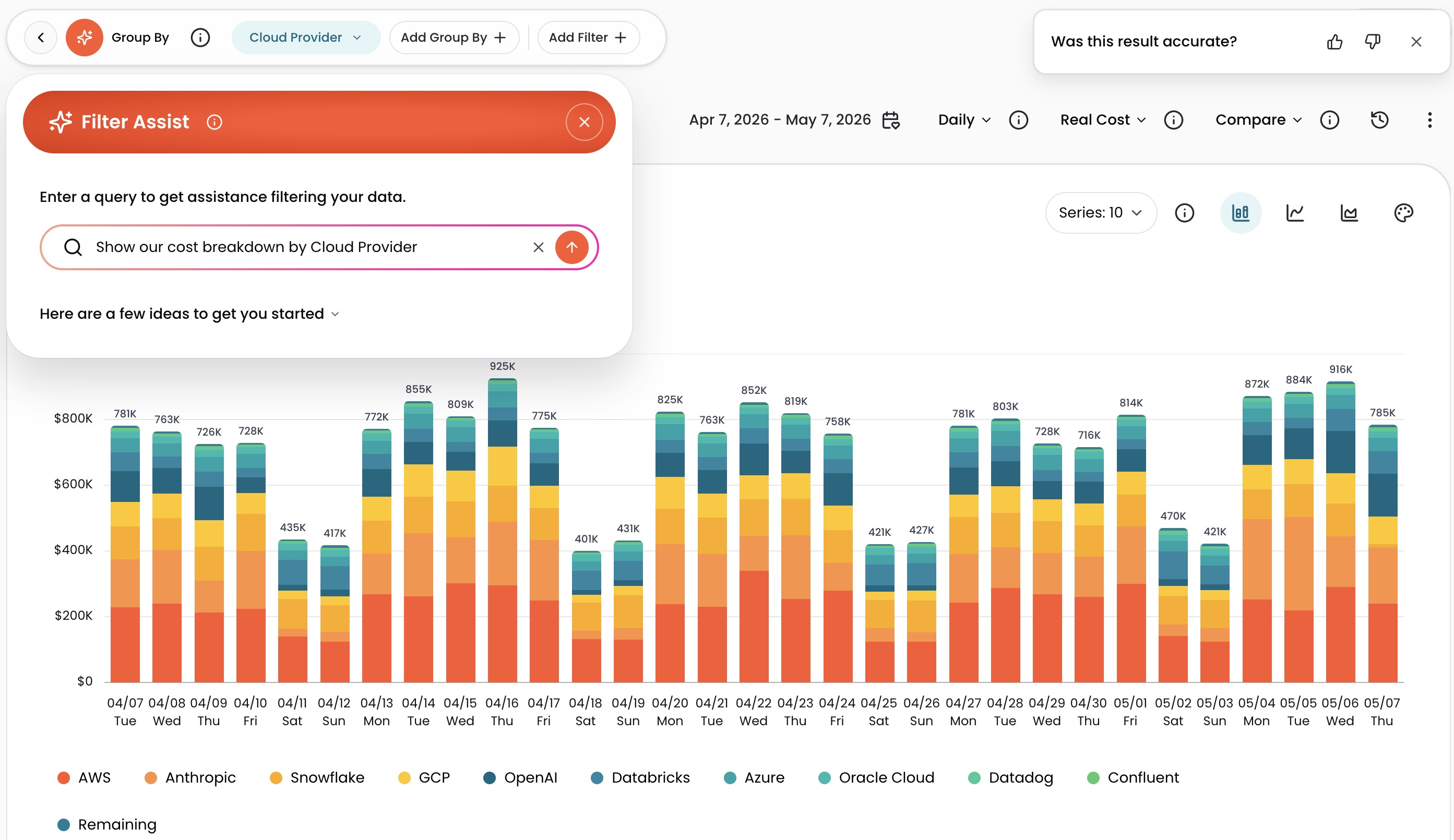
- Fine-tune if needed. All applied settings are fully editable using the controls described in the following sections.
Example queries:
- "What was our total cloud spend over the last 3 months?"
- "Show our cost breakdown by cloud provider"
- "Show hourly cloud spend for the past 3 days"
- "What was the OpenAI spend for each AI Agent in November 2025?"
- "What Engineering Team spent the most money over the last 4 weeks?"
- "How is our weekly spend trending over the past 6 months?"
Tips for better results:
- Include time ranges in your query: "last 30 days," "past 3 months," "last week"
- Name Dimensions specifically: cloud provider, service, team, account
- Keep queries direct; one question per query works best
After each query, use the thumbs up/down prompt to share whether the result was accurate. Your feedback improves Filter Assist over time. For deeper analysis beyond query setup, use the AI Hub.
Side panel layout
Group By and filter controls appear at the top of Explorer by default. To move them into a dedicated left side panel, click the side panel icon next to the back arrow. To switch back, click the collapse icon at the top of the side panel. CloudZero remembers your choice across sessions.
Group By
Group By organizes your costs by any category (Dimension) your business cares about.
To change the grouping, click the Group By selector at the top of Explorer and choose a Dimension. The graph and table update instantly. The total stays the same; only the breakdown changes.
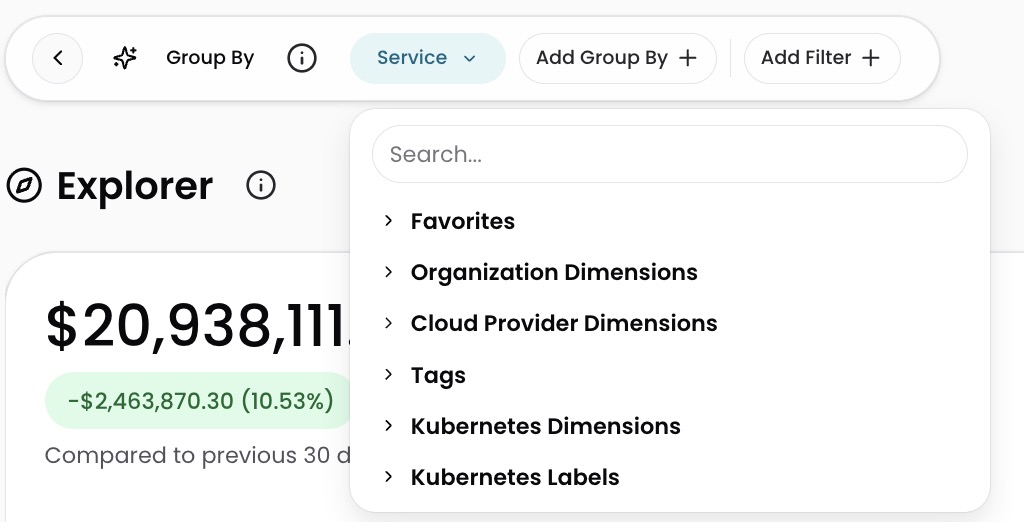
Available categories:
| Category | What it contains |
|---|---|
| Favorites | Dimensions you have marked with a heart icon |
| Organization Dimensions | Categories your organization defines (team, product, environment, customer) |
| Cloud Provider Dimensions | Account, service, region, instance type, AI usage, and more from your billing data |
| Tags | Tags applied to resources in your cloud provider accounts |
| Kubernetes Dimensions | Cluster, namespace, and workload (requires the CloudZero Agent) |
| Kubernetes Labels | Labels applied to Kubernetes resources (requires the CloudZero Agent) |
Explorer shows 100% of your cloud spend. Any spend not allocated to a value in the selected Dimension appears under Not In Dimension, so nothing is hidden.
Multi-dimensional Group By
Sometimes a single Dimension does not answer the full question. "How much does each team spend?" is useful, but "how much does each team spend, on which services, in which accounts?" is actionable. Explorer supports up to 8 Group By levels, so you can follow a cost path from a high-level category down to granular detail without leaving the page.
To add dimensions, select Add Group By and choose additional Dimensions. You can add up to 8 total.
When more than one Group By dimension is active, Explorer switches to a Treemap chart. Each rectangle represents a group's share of cost, sized proportionally. Click any rectangle to drill down into the next dimension in your Group By path.
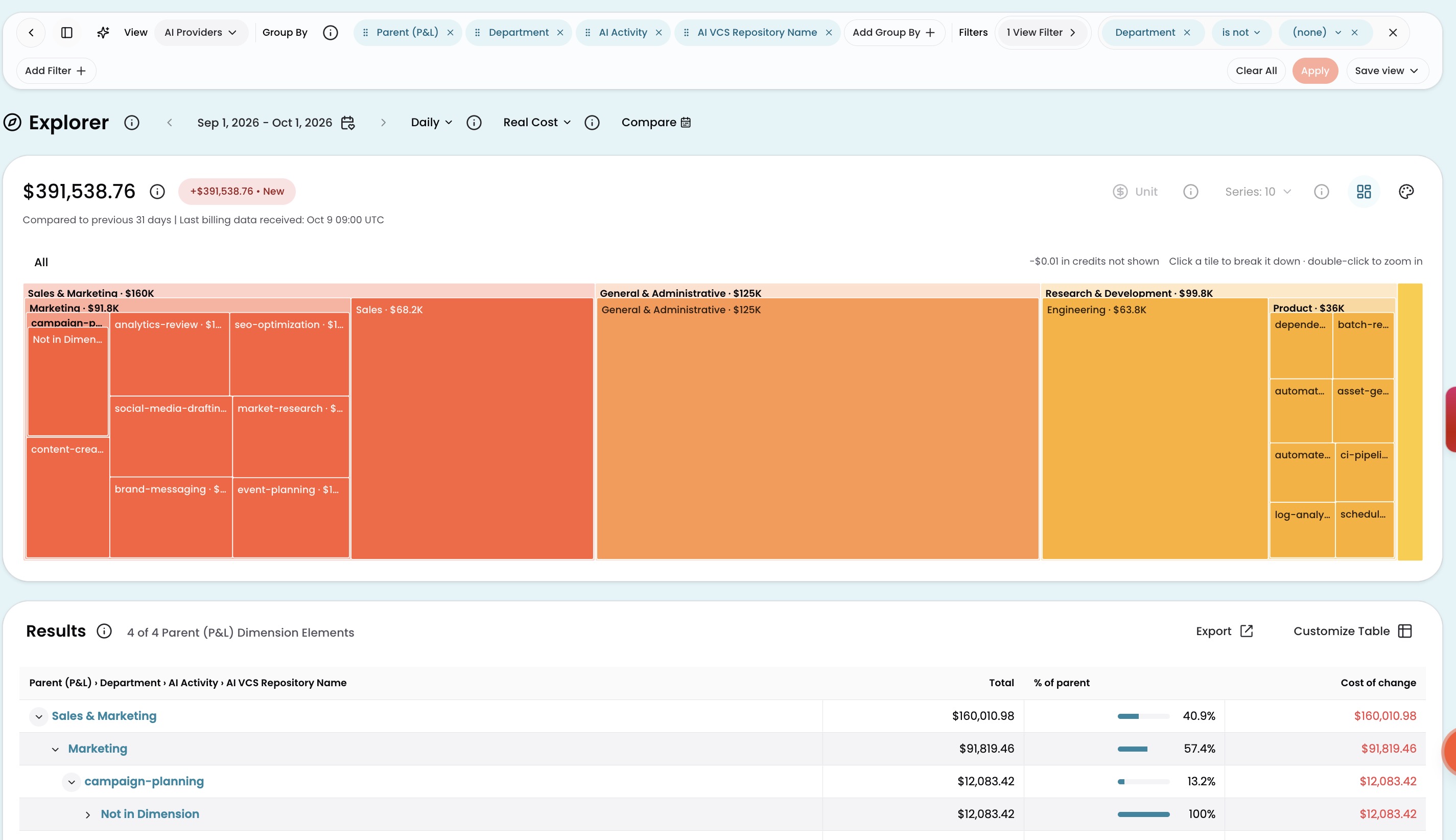
The cost table shows a % of Parent column alongside each row, so you can see how each child contributes to its parent group. An Other row appears when the result set is capped, ensuring that visible children always sum to the parent total.
For more on how Dimensions work, see Dimensions.
Filters
Filters narrow Explorer to a specific subset of your costs. For example, you can filter to one team, one service, one region, or any combination.
Click a row in the cost table to filter to that item and drill deeper. Keep clicking to reach individual resources.
Use the filter expression builder for more control:
- Select Add Filter + at the top of Explorer.
- Select a Dimension to filter on.
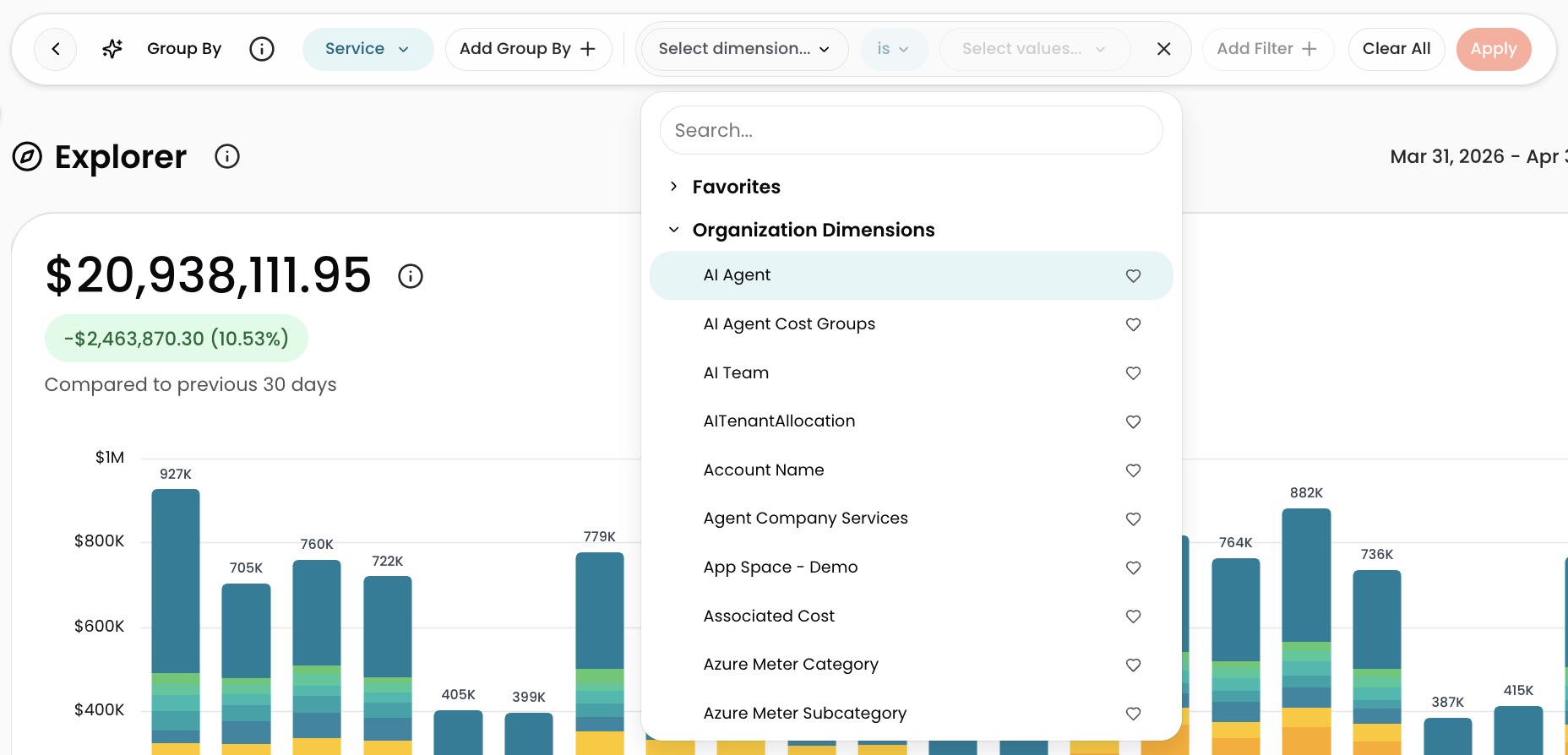
- Choose an operator and select values.
| Operator | What it does |
|---|---|
| is | Shows only the values you select (default) |
| is not | Hides the values you select |
| contains | Shows values that include your search term (case-sensitive) |
| does not contain | Hides values that include your search term (case-sensitive) |
- Continue to add more filters to narrow your results by repeating steps 1-3.
Time Range
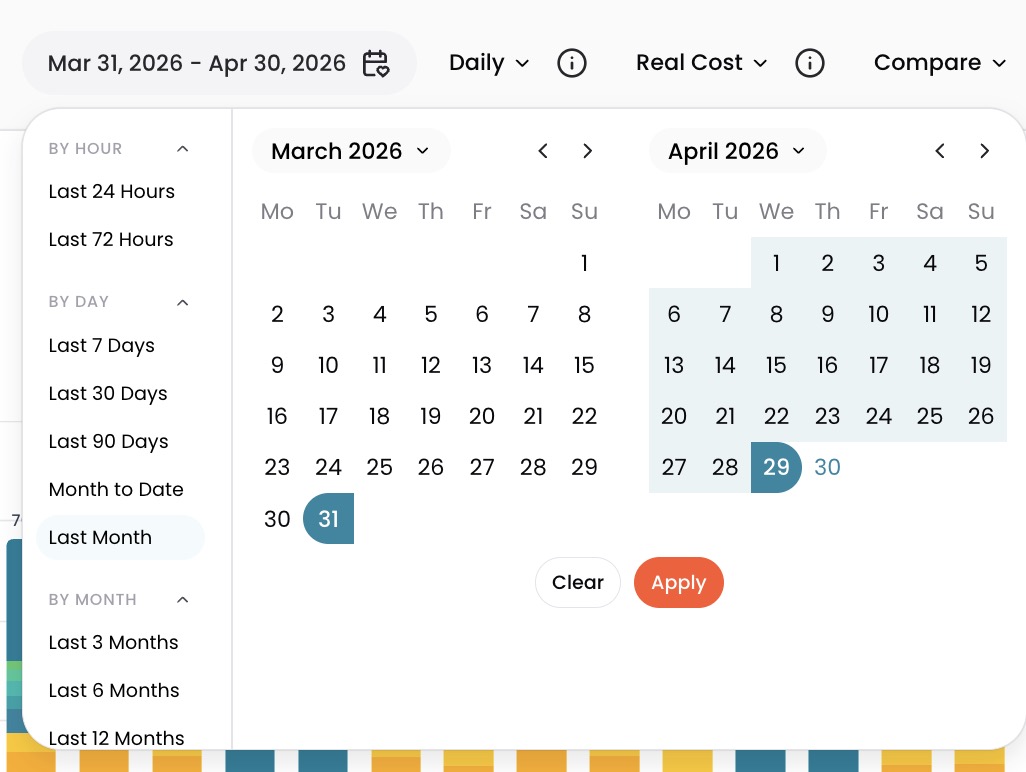
Time Range sets which period of spend you are analyzing.
To change it, click the Time Range selector and choose a predefined range or set custom dates.
Granularity
Granularity controls how costs are grouped on the time axis (each bar or point on the graph represents one hour, one day, one week, or one month).
| Granularity | Date range |
|---|---|
| Hourly | Up to 35 days |
| Daily | 1 day to 3 months |
| Weekly | 1 week to 1 year |
| Monthly | More than 1 month |
If a granularity option is not available, shorten your date range.
Partial periods
When your time range does not align to week or month boundaries, Explorer shows partial periods at the edges.
Weeks always start on Monday and end on Sunday. For example, if you select all of January 2025 with weekly granularity, the first bar covers January 1 (Wednesday) through January 5 (Sunday) and the last bar covers January 27 (Monday) through January 31 (Friday). The three weeks in between are full Monday-to-Sunday weeks.
Months follow the same pattern. If you select November 15, 2024 through February 15, 2025 with monthly granularity, November and February are partial months, while December and January are full months.
When weekly or monthly granularity is selected, Explorer extends your date range slightly to include complete periods. This can cause the total cost displayed to differ from the exact dates you selected.
Monthly normalization
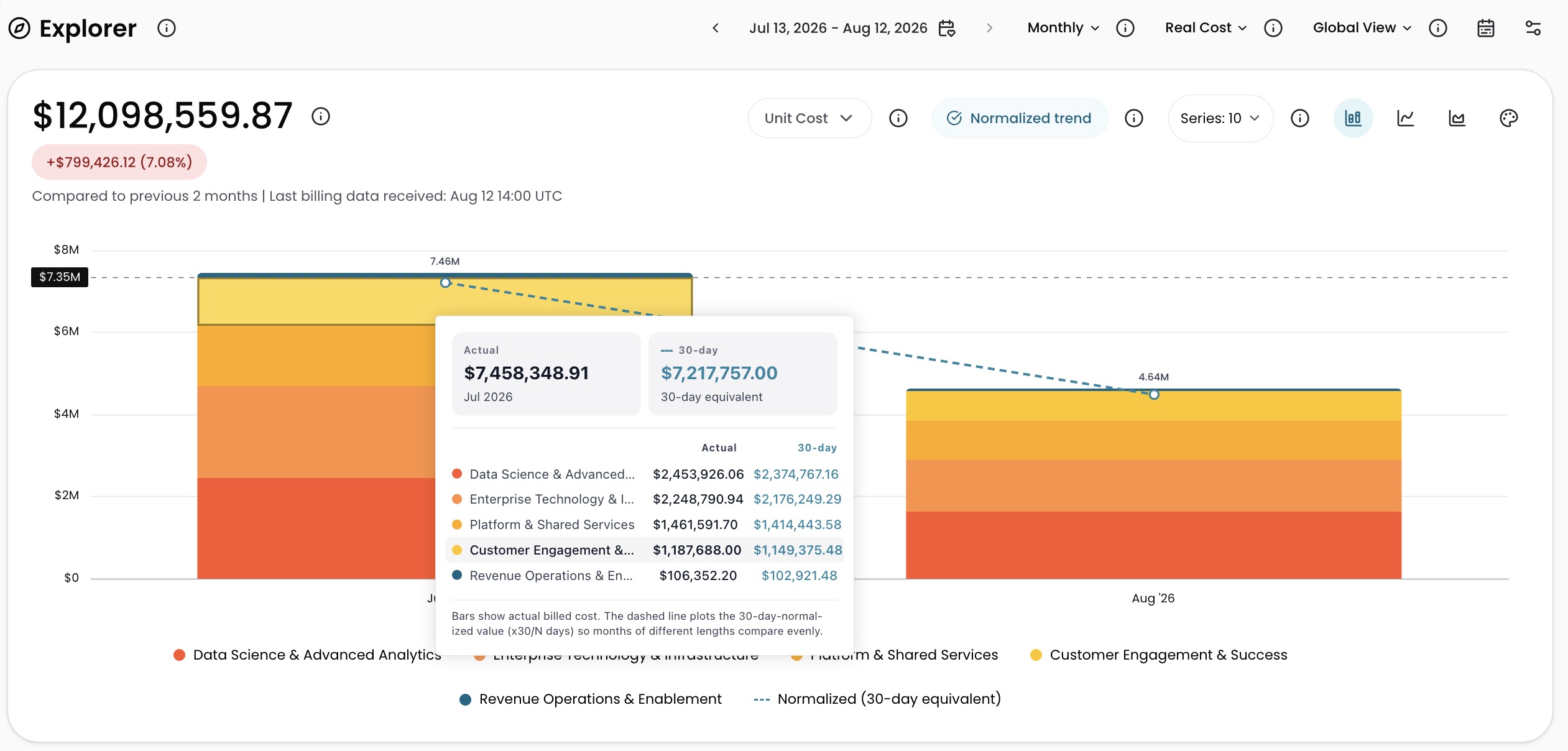
When monthly granularity is active, a Normalized trend button appears in the chart controls row. Click it to overlay a dashed trend line that scales each month's cost to a 30-day basis (cost x 30 / days in that month), so months of different lengths compare evenly.
Bars continue to show actual billed cost. Hover over a bar to see both the actual cost and the 30-day equivalent side by side. The legend adds a Normalized (30-day equivalent) entry. This setting persists in the URL.
Visualization
Visualization controls change how the cost graph displays your data.
- Series: how many of your top-spending groups appear individually on the graph. The default is 10; switch to 5 or 25 to show fewer or more. Everything else combines into a single Other series on the graph. The cost table is not affected by this setting.
- Chart type: stacked bar (default), spline, or area. When more than one Group By dimension is active, Explorer displays a Treemap instead.
Graph interactions
Click a bar on the graph to add a filter for that element. This changes your query and updates both the graph and table.
The following controls adjust the graph visually without changing your query or the cost table:
- Click a legend item to show only that group on the graph
- Shift + click a legend item to remove that group from the graph
- Click and drag on the graph to zoom into a specific portion of the displayed time range
- Select Reset ( ↺ ) to revert the graph to its original state
Customize the cost table
Focus the cost table on what matters to your analysis. Add comparison data, adjust density, and show or hide columns.
Select Customize Table above the results to open the customization panel.
- Analysis Data: add comparison columns to the table, such as Cost Trends
- Table density: switch between Standard, Spacious, and Compact row heights. This preference syncs with your Personal Settings and persists across sessions and devices
- Columns: toggle columns on or off, and drag to rearrange. You can also drag column headers directly in the table to reorder them, or drag a column out of the table to remove it
Table interactions
- Right-click a column header to pin, autosize, or rearrange columns
- Drag a column border to resize it
- Right-click a row value to open it in a new tab, copy it, or add it to your search filters
Switch between Aggregate and Date layouts
The results table has two layouts. Aggregate (the default) shows Total Cost, Cost of Change, and % of Change for the selected period. Date replaces those columns with one column per time period (hour, day, week, or month, matching your granularity) plus a Total column, so you can read costs the way a finance spreadsheet is structured.
To switch layouts: Click the Aggregate or Date button in the toolbar above the results table, next to Export.
| Layout | Columns shown | Best for |
|---|---|---|
| Aggregate | Total Cost, Cost of Change, % of Change | Spotting trends and investigating cost changes |
| Date | One column per period, plus Total | Reconciling against invoices and reviewing spend period by period |
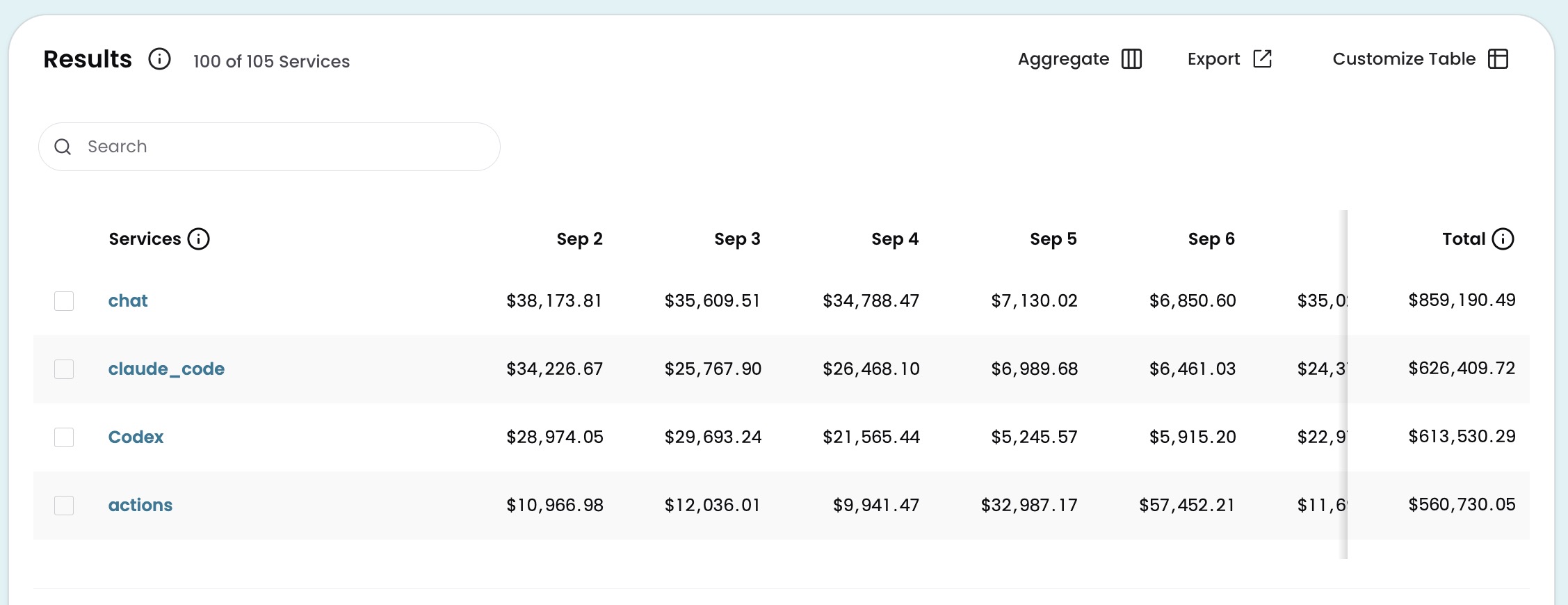
The layout you choose is saved in the URL. Shared links, bookmarks, and saved favorites reopen in the layout you left them in.
The Date layout is available when you group by a single Dimension. When multiple Group By dimensions are active, the toggle is not offered. Usage, unit cost, and trend columns are not available in the Date layout.
Query History and Favorites
Explorer tracks your queries and lets you save the ones you use most. Select Favorites from the icons on the right side of Explorer to open the panel. Click any entry to load it in Explorer.
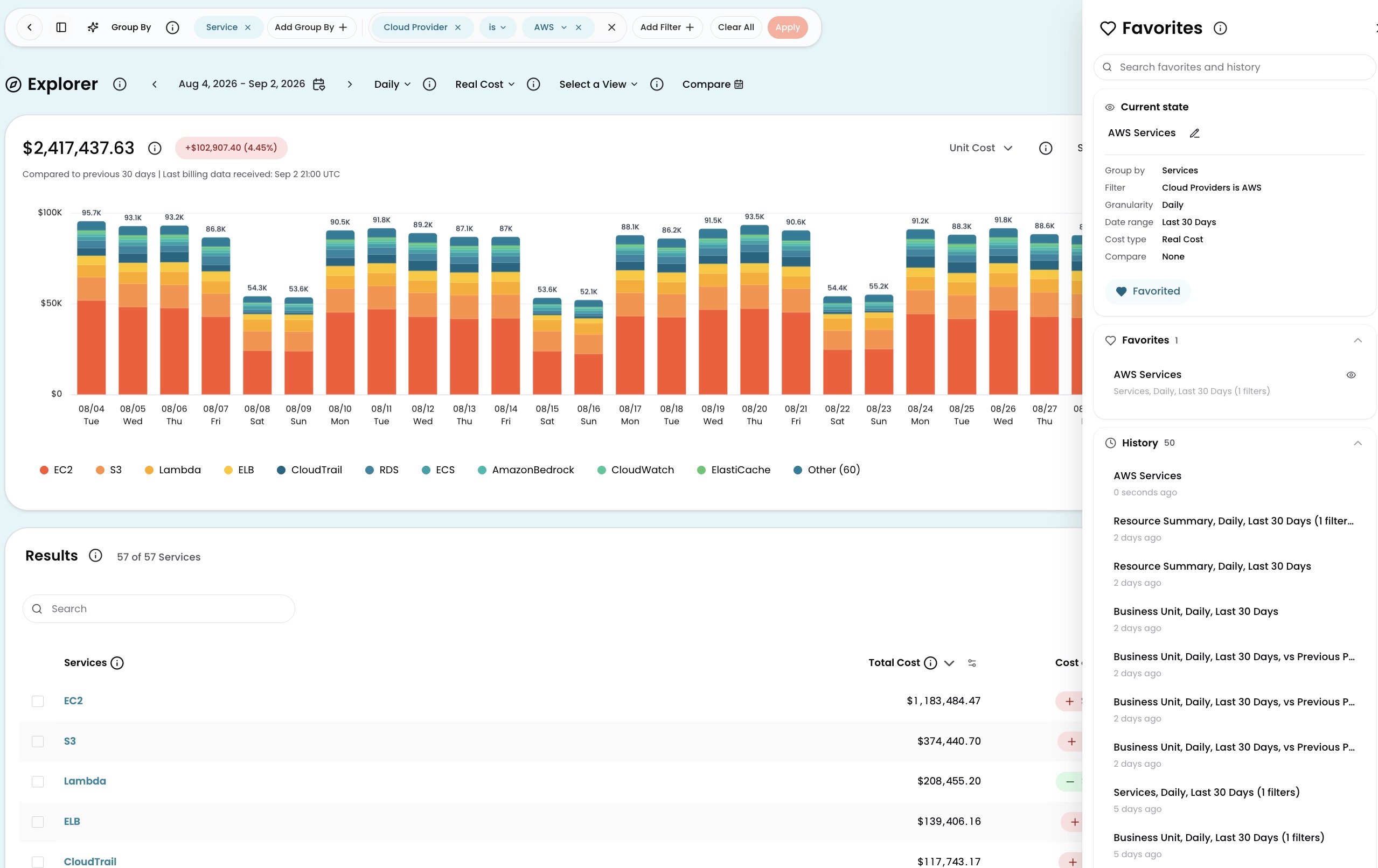
The search bar at the top of the panel searches across both favorites and history, matching on names and query metadata.
The Current State card shows your active Explorer configuration. Click Favorite this view to save it and give it a name.
Favorites holds up to 20 saved queries. Hover over a favorite to see its full configuration. Each favorite has action icons to create a View, open in a new tab, or rename the query.
History stores your last 50 queries with relative timestamps. Hover over any entry to see its full configuration. Click the heart icon to save a history entry as a favorite.
Have questions or feedback? Reach out to your account manager.
Updated 16 days ago