Dimension Studio
Permissions Required: To create or edit Dimensions, you must have a role with the Modify Dimension Definitions permission.
Quick Start: Most users start with a simple Group Dimension. Skip to: How to Create a Group Dimension
CloudZero provides a UI-based Dimension Studio, allowing users to create, update, or delete Dimension definitions directly within the CloudZero web application without having to write code.
If you prefer to write code, you can write CostFormation YAML in Dimension Studio instead of using an external application to edit and upload the YAML file. For details, see the section YAML Dimension editing.
Understanding Dimensions: A Conceptual Overview
Before diving into the technical steps, it's helpful to understand what Dimensions are and how they work in CloudZero.
What is a Dimension?
A Dimension is a way to categorize and organize your cloud spend. Think of Dimensions as labels or buckets that help you answer questions like:
- "How much are we spending on production vs. development environments?"
- "What's the cost breakdown by product or team?"
- "Which departments are driving our cloud costs?"
CloudZero uses Dimensions throughout the platform to let you slice, filter, and analyze your costs from different perspectives.
Types of Dimensions
There are two types of Dimensions you can create: Group Dimensions and Allocation Dimensions.
1. Group Dimensions
Purpose: Categorize and label costs without distributing them.
When to use: Most of your Dimensions will be Group Dimensions. Use them when you want to organize costs based on attributes of your infrastructure.
How they work: Group Dimensions use rules to examine your cloud resources and sort them into categories. Each category is called an element.
There are three types of rules:
- Group rule: Creates elements that you name explicitly based on conditions you define.
- Example: In an Environment Dimension, create an element named "Production" for resources tagged
Environment:prod.
- Example: In an Environment Dimension, create an element named "Production" for resources tagged
- GroupBy rule: Creates elements that are named automatically from existing dimension values.
- Example: In a Team Dimension, automatically create elements "finance" and "engineering" for resources tagged
team:financeandteam:engineering.
- Example: In a Team Dimension, automatically create elements "finance" and "engineering" for resources tagged
- Metadata rule: Enriches data by adding metadata or tags to costs without creating visible elements.
- Example: Tag resources with a
complianceflag for downstream processing.
- Example: Tag resources with a
2. Allocation Dimensions
Purpose: Split and distribute shared infrastructure costs across multiple teams, products, or cost centers.
When to use: Use Allocation Dimensions when you have shared resources (like a database or storage bucket) that multiple teams use, and you need to divide those costs fairly.
Allocation Dimensions have two methods:
Allocate By Rules
How it works: Uses rules to split costs evenly or proportionally.
Examples:
- Split shared RDS database costs evenly between four teams.
- Allocate shared storage proportionally by business unit.
Rule types used: Group, GroupBy
Allocate By Streams
How it works: Uses telemetry data (metrics, logs, API calls) you send to CloudZero to allocate costs proportionally based on actual usage.
Examples:
- Distribute API Gateway costs by actual request count per team
- Split database costs based on query volume per service
Rule types used: None (telemetry-driven)
The Anatomy of a Dimension
Every Dimension consists of:
- Parameters: Basic settings like the dimension name, default value for uncategorized spend, and visibility options
- Rules: The logic that determines how spend gets categorized
- Conditions: Specific criteria within rules (like "Cloud Provider equals AWS" or "Region equals us-east-1")
- Transforms (optional): Data cleanup operations to standardize values before rules are applied
How Dimensions Work Together
Dimensions can have parent-child relationships that enable drill-down analysis.
For example, a Product dimension might have Features as its child. When viewing costs by Product, you can click to drill down and see the Feature-level breakdown. This creates intuitive navigation paths: Organization → Product → Feature → Component.
The Dimension Creation Process
Creating a Dimension typically follows this flow:
- Choose the type: Use the decision guide to decide whether you need a Group Dimension (most common) or an Allocation Dimension (for splitting shared costs).
- Define parameters: Set the dimension name and configure basic options (see parameter configuration).
- Build rules (if rule-based Dimension): Create the logic that categorizes your spend
- For Group Dimensions: Define which resources belong in which categories (see rule writing guide).
- For Allocation by Rules Dimensions: Define what costs to allocate and how to distribute them (see Allocate By Rules procedure).
- Publish: Make your dimension live so it begins processing your cost data.
How Do I Choose a Dimension Type?
Ask yourself these questions:
Question 1: Do you need to split/distribute shared costs?
No, I just want to categorize costs:
→ Use a Group Dimension
Jump to: How to Create a Group Dimension
Yes, I need to distribute shared costs:
→ Continue to Question 2
Question 2: How do you want to determine the split?
I want to split costs evenly or proportionally using specific conditions:
→ Use Allocate By Rules
Jump to: How to Create an Allocate By Rules Dimension
I have telemetry data (metrics, logs, API calls) that reflects actual usage:
→ Use Allocate By Streams
Jump to: How to Create an Allocate By Streams Dimension
Common Scenarios
Scenario: "I want to see costs broken down by environment"
→ Group Dimension: Create a Group Dimension called "Environment" with Group rules that categorize resources as Production, Staging, or Development based on tags.
Scenario: "Our shared RDS database is used by 3 teams, and I want to split the cost proportionally based on each team's existing total cloud spend"
→ Allocate By Rules (Proportional): Create an Allocation Dimension using the Allocate by Rules method to identify RDS costs and distribute them proportionally across the 3 teams, where each team's allocation matches their proportion of total spend.
Scenario: "We send request counts per customer to CloudZero, and want to allocate API Gateway costs based on actual usage"
→ Allocate By Streams: Create an Allocation Dimension using the Allocate by Streams method with a request count telemetry stream to distribute API Gateway costs proportionally based on each customer's usage.
Scenario: "I want to categorize costs by which AWS account they're in"
→ Group Dimension: Create a Group Dimension with a GroupBy rule that automatically creates one element for each AWS account.
Dimension Type Comparison
| Group Dimension | Allocation Dimension | |
|---|---|---|
| Purpose | Categorize and label costs | Distribute shared costs according to rules or usage data |
| Cost Distribution | No cost distribution | Splits/allocates costs |
| Best For | Organizing costs by environment, team, product, or service | Splitting shared infrastructure costs evenly or proportionally, or by actual telemetry/usage metrics |
| Examples | Environment (prod/dev/staging); Product Line; Engineering Team | Distribute S3 costs proportionally by storage usage; allocate shared services evenly; split API Gateway costs by request count |
| Requirements | Existing dimensions or tags to build rules on | Existing dimensions to define allocation targets (allocate by rules), or telemetry streams configured in CloudZero (allocate by streams) |
| Rules Used | Group, GroupBy, Metadata | Group, GroupBy (Allocation by Rules only) |
Ready to create your dimension? Jump to the instructions for your dimension type:
- How to Create a Group Dimension
- How to Create an Allocate By Rules Dimension
- How to Create an Allocate By Streams Dimension
How to Create a Group Dimension
Use a Group Dimension when you want to categorize and label your cloud costs without distributing them. Examples include organizing costs by Environment (Production, Development, Staging), Team (Engineering, Marketing, Sales), or Product (Mobile App, Web App, API).
To create a Group Dimension, complete the following steps:
- Select Dimension type.
- Configure optional parameters.
- Create rules to categorize spend.
- Publish the Dimension.
Step 1: Select Group Dimension
- Log in to CloudZero and select Dimensions in the top navigation.
- Click + Add New Dimension at the bottom of the left sidebar.
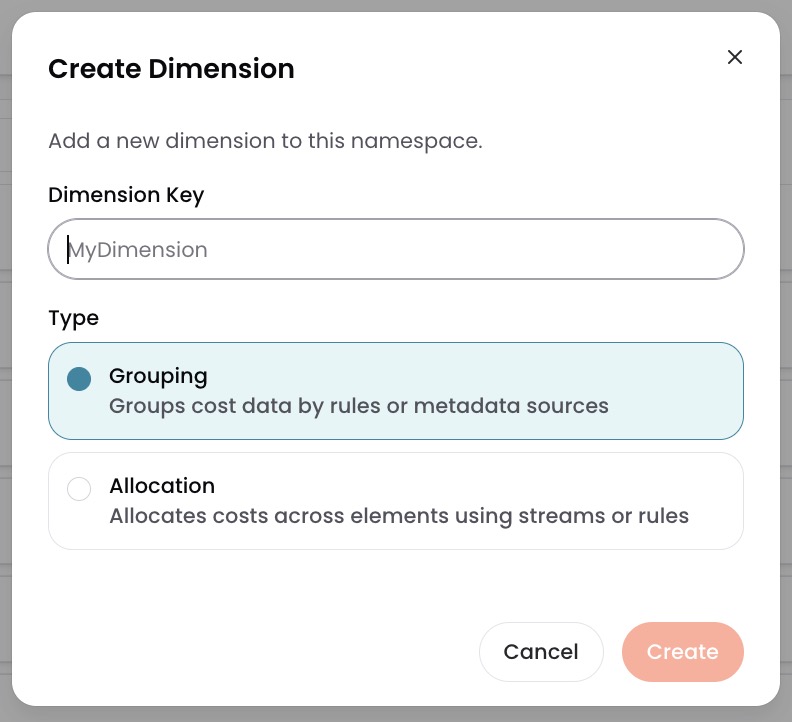
- In the Create Dimension - Step 1 modal, select Group Dimension (selected by default).
- Click Next.
- In the Create Dimension - Step 2 modal, enter a Display Name for your dimension. This name will appear in the Explorer, Analytics, and elsewhere in the CloudZero interface.
- Click Create.
Step 2: Configure optional Group Dimension parameters
The Parameters section of the visual editor contains optional parameters and is hidden by default.
To configure optional parameters:
- Select Parameters to expand the section.
- Optionally, enter a Default Value. This is the element that spend is assigned to if it doesn't match any of your rules. If you don't fill this out, unassigned spend is assigned to an element called Not in Dimension.
- Optionally, select a Child Dimension. This is the next level of detail shown when you drill down into a Dimension in the Explorer. For example, a Product Dimension might have a child Dimension called Feature.
- Optionally, turn on Hide to prevent this Dimension from appearing in Explorer or Analytics while continuing to process its data. Use this when the Dimension is needed for calculations but shouldn't be visible to users. (Default: off)
- Optionally, turn on Disable to stop processing this Dimension's data and prevent it from appearing in Explorer or Analytics. Use this to temporarily deactivate the Dimension without deleting it. (Default: off)
Step 3: Create Group or GroupBy rules
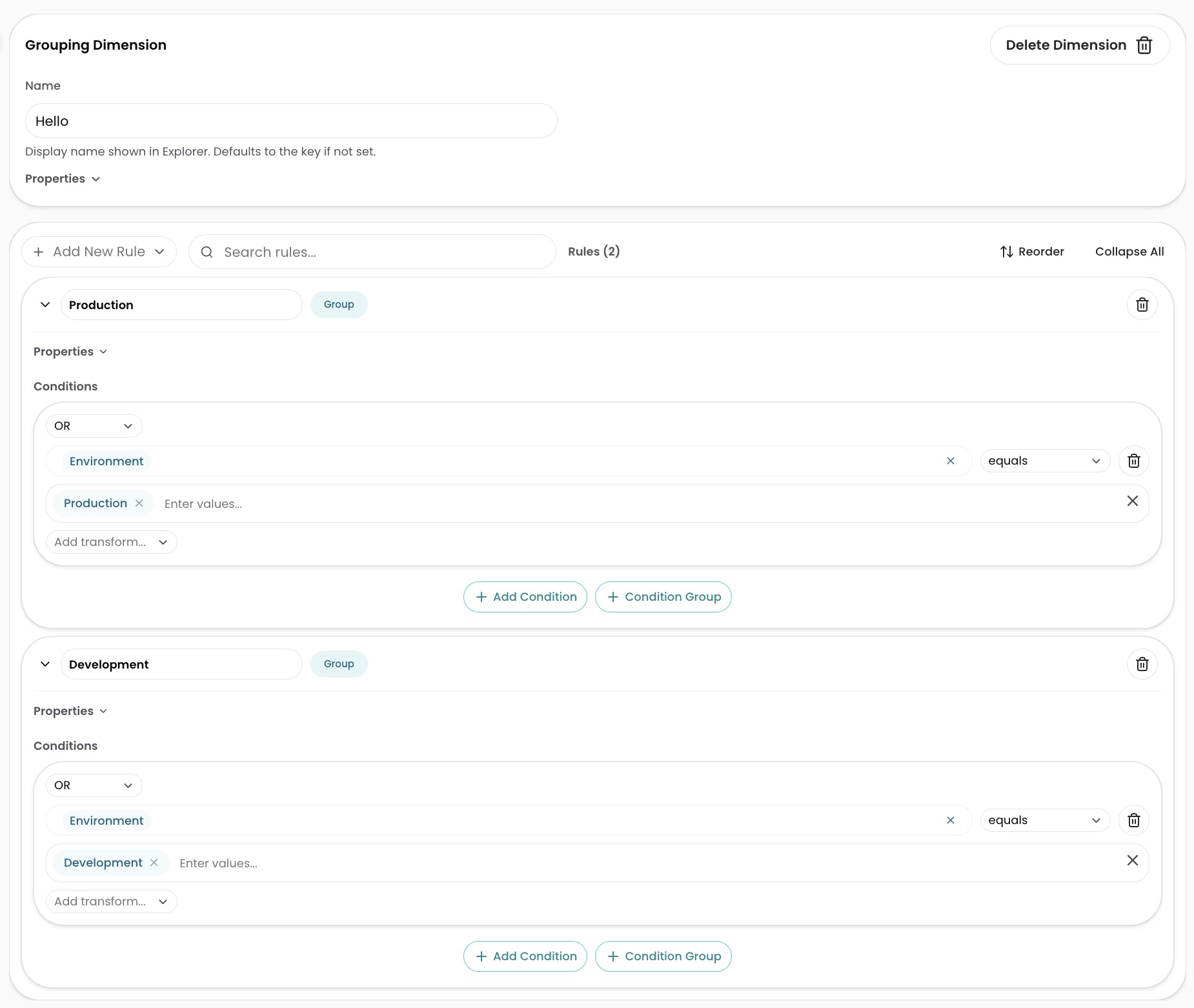
The next step is to create Group or GroupBy rules to categorize spend into different elements of the Dimension.
Note that rules are evaluated from top to bottom. Once spend matches a rule, evaluation stops. Spend that doesn't match any rule will be assigned the Default Value.
To configure your first rule:
- Choose a Group rule if you want to name the elements yourself.
- Choose a GroupBy rule if you want the elements to be named automatically.
How to create a Group rule
In the 1 Rule section, configure the following fields:
- Type: Select Group (default).
- Name: Enter the element name (for example,
Production,Development,Engineering Team). - And/Or/Not: Choose your logic operator for this condition block. This determines how all conditions within this block are combined. You can leave the default operator (Or) if you only have one condition.
- Source: Select a dimension to match against (for example,
Environment Tag,Account Name). - Operator: Select Equals (or another operator).
- Value: Enter or select the value(s) to match.
- Transforms (optional): Expand Transforms and select Add Transform to standardize data before rules are evaluated (for example, convert text to lowercase). Transforms are typically added after you've configured your conditions. To learn more, see Transforms.
- Optionally, click Add Condition to add another condition within this block using the same logic operator (for example, if the block uses Or, conditions combine as
A OR B). - Optionally, click Add Condition Group to create nested logic within this block with its own And/Or/Not operator (for example,
A OR (B AND C)). - Optionally, continue to add conditions and/or condition groups as needed.
- Optionally, click + Create new rule at the top to add more rules. You can mix Group and GroupBy rules. Continue adding rules until you've fully categorized your spend.
- Proceed to Step 4 to publish your dimension.
You can use the trash icon in the top-right corner of each rule card to delete unwanted rules.
How to create a GroupBy rule
In the 1 Rule section, configure the following fields:
- Type: Select Group By.
- Sources: Select one or more Dimensions whose values will automatically become element names (for example,
Account Name,Service). - Coalesce: When on (default), multiple sources are merged and treated as a single source, so the first non-null value is used. For example, use the value for
Environment Tag, but if no value is present, fall back toEnv Tag. When off, sources are treated individually; all source values must be present and will be concatenated with a space between each source. For example, using the sourcesAccountandServiceresults in an element name likeAccount123 S3. - Format (optional): Enter a template to customize how element names appear using
{0},{1}, and so on to represent source values. For example,{0} - {1}creates names likeAccount123 - S3when the sources areAccountandService. If no format is specified, values are concatenated with a space. - Transforms (optional): Expand Transforms and select Add Transform to standardize data before rules are evaluated (for example, convert text to lowercase). Transforms are typically added after you've configured your sources. To learn more, see Transforms.
- Optionally, add conditions to filter which spend this rule applies to:
- Click + New Condition to add a condition block.
- And/Or/Not: Choose your logic operator for this condition block. This determines how all conditions within this block are combined. You can leave the default operator (Or) if you only have one condition.
- Click Add Condition to add a condition within the block (for example,
A OR B) or click Add Condition Group to create nested logic with its own operator (for example,A OR (B AND C)). - For each condition, configure the following:
- Source: Select a dimension to match against (for example,
Environment Tag,Account Name). - Operator: Select Equals (or another operator).
- Value: Enter or select the value(s) to match.
- Coalesce (optional): Off by default in conditions and nested condition groups.
- Transforms (optional).
- Source: Select a dimension to match against (for example,
- Optionally, continue adding conditions and/or condition groups.
- Optionally, click + Create new rule at the top to add more rules. You can mix Group and GroupBy rules. Continue adding rules until you've fully categorized your spend.
- Proceed to Step 4 to publish your dimension.
You can use the trash icon in the top-right corner of each rule card to delete unwanted rules.
Step 4: Publish the Group Dimension
- Click Publish Changes in the top-right corner. The button is orange/active when you have unpublished changes and grayed out if there are no changes.
- In the modal that appears, click Publish Changes to confirm.
- After success, you'll see the message "Changes Published Successfully." The dimension is now active and will begin processing your cost data.
To abandon all changes made after your most recent publish, you can select Discard Current Changes near the top of the page. You will be redirected to the first Dimension listed in the sidebar.
How to Create an Allocate By Rules Dimension
Use an Allocation Dimension with the Allocate By Rules method when you need to split shared infrastructure costs across multiple elements, such as teams or products, using custom rules and conditions. This method lets you distribute costs evenly (same cost for each element) or proportionally (cost is based on each element's proportion of the total cloud spend).
Common use cases:
- Split shared RDS database costs across applications.
- Distribute shared VPC or networking costs across teams.
- Allocate shared storage costs based on business units.
To create an Allocate by Rules Dimension, complete the following steps:
- Select Dimension type.
- Configure optional parameters.
- Select allocation method.
- Define spend to allocate.
- Define Across Elements.
- Optionally define ForEachElementOf.
- Publish the Dimension.
Step 1: Select Allocate by Rules Dimension
- Log in to CloudZero and select Dimensions in the top navigation.
- Click + Add New Dimension at the bottom of the left sidebar.
- In the Create Dimension - Step 1 modal, select Allocation Dimension.
- Click Next.
- In the Create Dimension - Step 2 modal, enter a Display Name for your dimension. This name will appear in the Explorer, Analytics, and elsewhere in the CloudZero interface.
- Select Allocate by Rules.
- Click Create.
Step 2: Configure optional Allocate by Rules parameters
The Parameters section of the visual editor contains optional parameters and is hidden by default.
To configure optional parameters:
- Select Parameters to expand the section.
- Optionally, enter a Default Value. This is the element that spend is assigned to if it doesn't match any of your rules. If you don't fill this out, unassigned spend is assigned to an element called Not in Dimension.
- Optionally, turn on Hide to prevent this Dimension from appearing in Explorer or Analytics while continuing to process its data. Use this when the Dimension is needed for calculations but shouldn't be visible to users. (Default: off)
- Optionally, turn on Disable to stop processing this Dimension's data and prevent it from appearing in Explorer or Analytics. Use this to temporarily deactivate the Dimension without deleting it. (Default: off)
Step 3: Select Even or Proportional allocation method
The allocation method determines how costs are split across elements. Select an Allocation Method:
- Even: Costs are split equally across all elements
- Example: $1000 split across 4 teams = $250 per team
- Proportional: Costs are split proportionally, based on each element's existing total cloud spend
- Example: $1000 split 40/30/20/10 = $400/$300/$200/$100
Step 4: Define spend to allocate
The Spend To Allocate section defines which costs will be allocated across elements.
- In the Spend To Allocate section, configure the condition block:
- And/Or/Not: Choose the logic operator for this condition block. This determines how all conditions within this block are combined.
- Source: Select a dimension to match against (for example,
Service,Account Name). - Operator: Select Equals (or another operator).
- Value: Enter or select the value(s) to match.
- Transform (optional): Expand Transforms and select Add Transform to standardize data before evaluation. To learn more, see Transforms.
- Optionally, click Add Condition to add another condition within this block using the same logic operator.
- Optionally, click Add Condition Group to create nested logic within this block with its own And/Or/Not operator.
- Optionally, continue to add conditions and/or condition groups as needed.
- Optionally, click + New Condition at the bottom to add a new condition block with its own logic operator.
Example: To allocate shared RDS costs from a specific account:
- Condition block 1 (And): Service Equals "AmazonRDS" AND Account Equals "123456789012"
Step 5: Define Across Elements
The Across Elements section determines which elements receive the allocated costs.
-
In the Across Elements section, under Rule 1, configure the following fields:
- Type: Select Group By (this is the typical choice for allocation).
- Sources: Select one or more dimensions to distribute costs across (for example,
Engineering Team,Product). - Coalesce: When on, multiple sources are merged and treated as a single source, so the first non-null value is used. When off (default), sources are treated individually; all source values must be present and will be concatenated with a space. For example, using the sources
AccountandServiceresults in an element name likeAccount123 S3. - Format (optional): Enter a template to customize element names using
{0},{1}, and so on as placeholders for source values (for example,{0} - Shared). If no format is specified, values are concatenated with a space. - Transforms (optional): Expand Transforms and select Add Transform to standardize data before evaluation.
-
Optionally, add conditions to filter which elements receive allocations:
- Click + New Condition to add a condition block.
- And/Or/Not: Choose your logic operator for this condition block. This determines how all conditions within this block are combined. The default operator is And.
- Source: Select a dimension to match against (for example,
Environment Tag,Account Name). - Operator: Select Equals (or another operator).
- Value: Enter or select the value(s) to match.
- Coalesce: Off by default in conditions and nested condition groups.
- Transforms (optional).
- Optionally, click Add Condition to add a condition within the block (for example,
A OR B) or click Add Condition Group to create nested logic with its own operator (for example,A OR (B AND C)). - Optionally, continue adding conditions and/or condition groups.
- Example: Only allocate to production teams by adding:
Environment Equals Production
-
Optionally, click + Add Rule to create additional distribution rules.
Step 6: Optionally define ForEachElementOf (Nested Allocation)
For complex scenarios where you want to split costs separately within each group (nested allocation):
- Click + Add ForEachElementOf at the bottom of the Across Elements section.
- In the For Each Element Of section, configure the following fields:
- Sources: Select one or more Dimensions to iterate over (for example,
Environment). Each element in this Dimension will have its costs split separately. - Coalesce: Off by default in conditions and nested condition groups.
- Format (optional).
- Transform (optional).
- + New Condition: Optionally, add a condition to filter which elements receive allocations. You can click Add Condition to add another condition within the block (for example,
A OR B) or click Add Condition Group to create nested logic with its own operator (for example,A OR (B AND C)). - Optionally, continue adding conditions and/or condition groups.
- Sources: Select one or more Dimensions to iterate over (for example,
Example: Allocate RDS costs by Team, then further split by Environment within each team.
Step 7: Publish the Allocate by Rules Dimension
- Click Publish Changes in the top-right corner. The button is orange/active when you have unpublished changes and grayed out if there are no changes.
- In the modal that appears, click Publish Changes to confirm.
- After success, you'll see the message "Changes Published Successfully." The dimension is now active and will begin processing your cost data.
To abandon all changes made after your most recent publish, you can select Discard Current Changes near the top of the page. You will be redirected to the first Dimension listed in the sidebar.
How to Create an Allocate By Streams Dimension
Use an Allocation Dimension with the Allocate By Streams method when you want to distribute shared costs based on actual usage telemetry data sent to CloudZero. This method provides dynamic, usage-based cost allocation that automatically adjusts as usage patterns change.
Common use cases:
- Allocate shared infrastructure based on API call volume.
- Distribute costs by actual resource utilization metrics.
- Split costs based on log ingestion or data transfer volume.
Prerequisite: You must have telemetry streams configured and sending data to CloudZero. See CloudZero Telemetry documentation for details.
To create an Allocate By Streams Dimension, complete the following steps:
- Select Dimension type.
- Configure optional parameters.
- Select telemetry streams.
- Publish the Dimension.
Step 1: Select Allocate by Streams Dimension
- Log in to CloudZero and select Dimensions in the top navigation.
- Click + Add New Dimension at the bottom of the left sidebar.
- In the Create Dimension - Step 1 modal, select Allocation Dimension.
- Click Next.
- In the Create Dimension - Step 2 modal, enter a Display Name for your dimension. This name will appear in the Explorer, Analytics, and elsewhere in the CloudZero interface.
- Select Allocate by Streams.
- Click Create.
Step 2: Configure optional Allocate by Streams parameters
The Parameters section of the visual editor contains optional parameters and is hidden by default.
To configure optional parameters:
- Select Parameters to expand the section.
- Optionally, enter a Default Value. This is the element that spend is assigned to if it doesn't match any of your rules. If you don't fill this out, unassigned spend is assigned to an element called Not in Dimension.
- Optionally, turn on Hide to prevent this Dimension from appearing in Explorer or Analytics while continuing to process its data. Use this when the Dimension is needed for calculations but shouldn't be visible to users. (Default: off)
- Optionally, turn on Disable to stop processing this Dimension's data and prevent it from appearing in Explorer or Analytics. Use this to temporarily deactivate the Dimension without deleting it. (Default: off)
Step 3: Select telemetry streams
The Allocate By Streams section defines which telemetry streams CloudZero uses to allocate costs.
- Expand the Allocate By Streams section.
- In the Streams field, click to open the search dropdown.
- Search for and select one or more telemetry streams (for example,
api-calls-by-service,log-ingestion-by-team).
CloudZero will use the selected telemetry streams to proportionally allocate costs based on actual usage data. For example, if Team A generated 60% of API calls and Team B generated 40%, shared infrastructure costs will be split 60/40.
Step 4: Publish the Allocate by Streams Dimension
- Click Publish Changes in the top-right corner. The button is orange/active when you have unpublished changes and grayed out if there are no changes.
- In the modal that appears, click Publish Changes to confirm.
- After success, you'll see the message "Changes Published Successfully." The dimension is now active and will begin processing your cost data.
To abandon all changes made after your most recent publish, you can select Discard Current Changes near the top of the page. You will be redirected to the first Dimension listed in the sidebar.
Understanding and Writing Rules
Rules are the core logic that determines how your cloud costs are categorized or allocated. To learn about rule types, evaluation order, writing effective rules, and best practices, see Understanding and Writing Rules.
Complete Examples
For three complete, end-to-end examples showing how to create each type of dimension, see Complete Dimension Examples. These examples include:
- Creating an Environment Dimension (Group)
- Allocating Shared RDS Costs (Allocate By Rules)
- Allocating Costs by Telemetry (Allocate By Streams)
Advanced Features
For advanced features like nested allocation (ForEachElementOf), complex condition groups, and multi-transform combinations, see Advanced Dimension Features.
Edit an Existing Dimension
- To edit any existing Dimension, select it from the left navigation.
- Click the Dimension you want to edit.
- Make the needed updates.
- Click Publish Changes. For details, see the section Save and Publish the Dimension.
Delete a Dimension
Deleting a Dimension can lead to downstream and upstream problems with other Dimensions. For example, if you have a Product > Feature > Component hierarchy built out, and delete the
FeatureDimension, you must make updates to theProductandComponentDimensions for your CostFormation Definitions to properly function.
To delete any existing Dimension, follow these steps:
- On the Dimensions screen, select the Dimension you want to delete using the left navigation menu.
- Click Delete Dimension.
- Click Publish Changes. For details, see the section Save and Publish the Dimension.
YAML Dimension editing
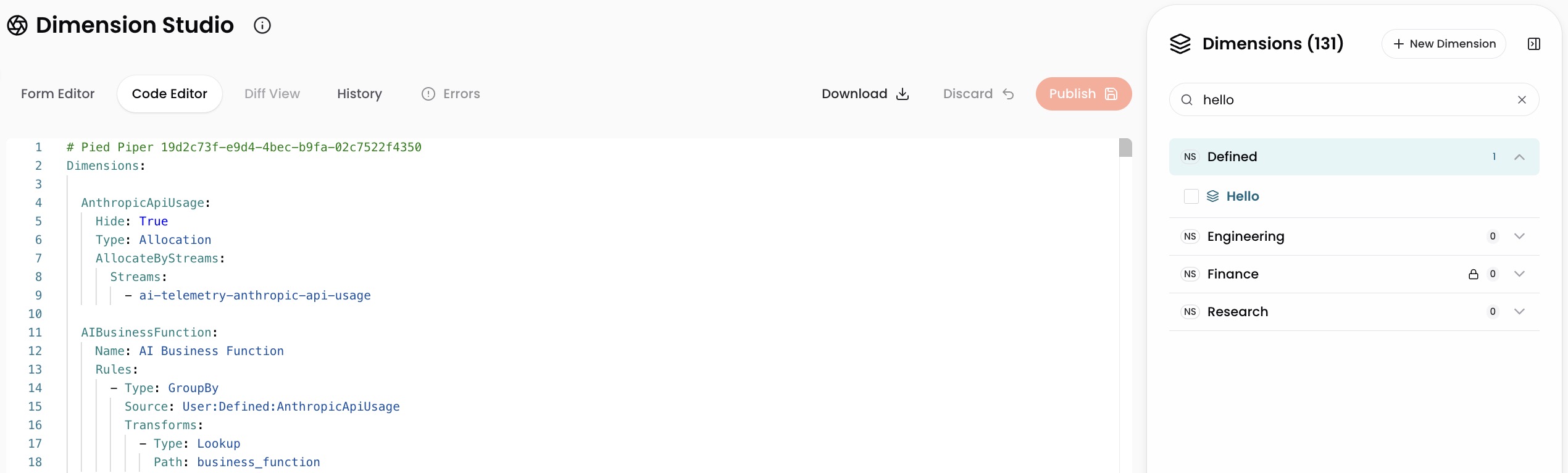
The Dimension Studio includes a Code editor tab with YAML editing capabilities to create and update Dimensions.
Changes that you make in the YAML Code Editor and the Visual Editor will synchronize automatically. For example, if you add a new Group rule to a Dimension through the UI, the rule will appear in the corresponding YAML automatically. If you add a new transform using YAML, the transform will be shown in the UI as well.
The Dimension Studio supports most of the YAML-based CostFormation capabilities. You may need to use the VS Code CostFormation Toolkit to achieve outcomes for complex use cases and cost allocation requirements.
To open the YAML editor for an individual Dimension, follow these steps:
- Select a dimension from the left navigation.
- Click the Code editor tab at the top of the editor pane (next to "Visual editor").
- The YAML code for the dimension appears in a dark code editor with syntax highlighting.
- Make changes to the YAML definition as needed.
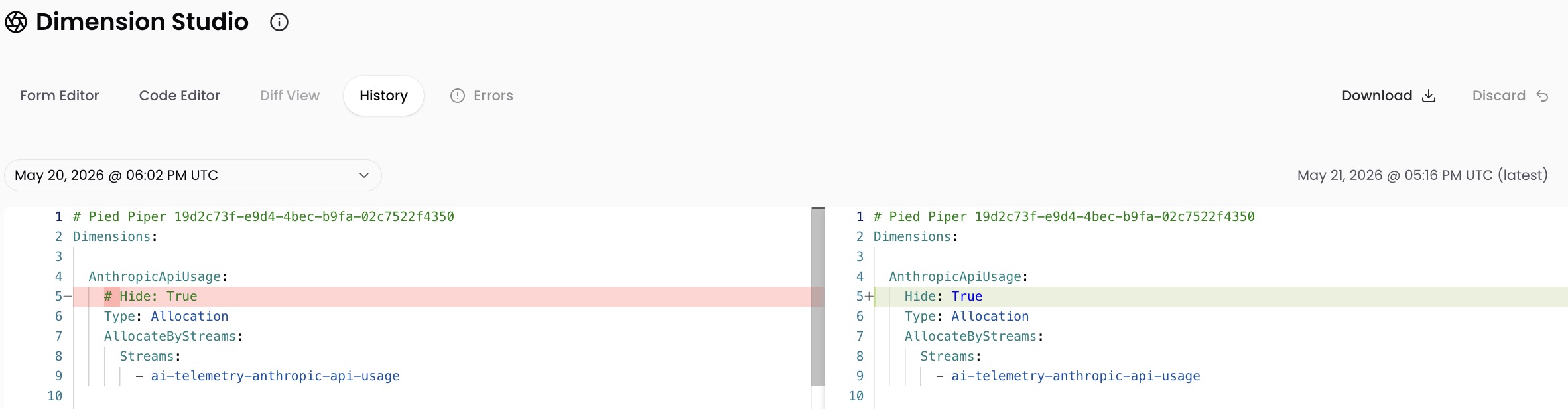
- (Optional) Click Diff Viewer in the top-right to see a comparison of your changes against the published version.
- Click Publish Changes to save your changes. For details, see the section Save and Publish the Dimension.
To open a comprehensive YAML-based view of your entire CostFormation definition file, follow these steps:
- Open the Dimension Studio by clicking Dimensions in the top navigation of the CloudZero app.
- From the welcome screen, click View All Dimension definitions in the top-right area.
- A full-file YAML editor will open showing all dimension definitions in your account.
For more information about YAML-based editing, see the CostFormation documentation.
Handle problems identified when saving changes
When you are saving changes to your CostFormation definitions, CloudZero will validate your changes to ensure that you are not committing breaking changes that will impact your end users and cost allocations.
Problems identified will largely be grouped into these major categories:
-
Versioning: These problems can occur when another user has published changes to your CostFormation definitions while you have been using the visual editor.
In these circumstances, it is recommended to revert any changes that you have made to make sure that you are working from the most recent version of your accounts definitions, and to not overwrite another user's work.
-
Formatting and syntax: These problems occur mainly when you are using the Code editor to hand write CostFormation definitions. The Dimension Studio will highlight each area where there is a formatting or syntax error, and will require that each be fixed prior to publishing your changes into the platform.
Best Practices
- Start with Group Dimensions: Most organizations build 5-10 Group Dimensions before needing Allocation Dimensions
- Think hierarchically: Design related Dimensions with parent-child relationships for intuitive drill-down
- Use descriptive names: Dimension and rule names should clearly indicate what they represent
- Start simple: Begin with broad categories and add complexity as needed
- Test with samples: When building rules, think through example resources to verify your logic catches them correctly
Updated about 6 hours ago